Icons for button boxes and decks
165 SimRacing icons for any deck that takes custom images: Stream Deck, AmpliGame D6, Loupedeck, a button box with screens or a dashboard app on your phone. Black background and one color per function.
- 165 icons
- 9 screens
- PNG 100×100, with and without text

Example: the 9 D6 screens
One way to organize the icons, built for the AmpliGame D6 and iRacing. If you use the D6, the profile comes like this; on another deck, take it as an idea. The top-left key always goes back Home.

Home
Root screen: Discord and OBS on the first keys, then the iRacing folders, and starter, exit or tow, spotter and chat below.
See the 15 keys on this screen
Shortcuts from the D6 profile for iRacing. Keys numbered left to right, top to bottom.
| Key | Icon | Shortcut | In the program | What it does |
|---|---|---|---|---|
| 1 |  | Folder / Back | — | Opens the Discord screen. |
| 2 |  | Folder / Back | — | Opens the OBS screen. |
| 3 |  | Folder / Back | — | Opens the Formula screen. |
| 4 |  | Folder / Back | — | Opens the GT screen. |
| 5 |  | Folder / Back | — | Opens the Pit stop screen. |
| 6 |  | Folder / Back | — | Opens the Adjust and driver screen. |
| 7 |  | Folder / Back | — | Opens the Practice screen. |
| 8 |  | Folder / Back | — | Opens the Replay screen. |
| 9 |  | I | iRacing › In Car › Ignition | Turns the ignition on and off. Some cars need it on before you start the engine. |
| 10 |  | S | iRacing › In Car › Starter | Cranks the engine while the key is held. On the D6 it is a long press: hold until the engine fires. |
| 11 |  | Shift + R | iRacing › In Car › Enter / Exit / Tow Car | Gets out of the car or calls a tow to the pits. On the D6 it is a long press: hold until iRacing confirms. |
| 12 |  | Ctrl + Shift + W | iRacing › Spotter › Spotter Weather Report | Asks the spotter for a weather report: incoming rain, temperature and track condition. |
| 13 |  | Ctrl + Shift + 9 | iRacing › Spotter › Spotter Quieter | Turns the spotter volume down. |
| 14 |  | Ctrl + Shift + 0 | iRacing › Spotter › Spotter Louder | Turns the spotter volume up. |
| 15 |  | T | iRacing › Text Chat › Text Chat | Opens the iRacing text chat. |

Formula
Open-wheel: DRS, push to pass and launch assist on top; bias, migration and damage in the middle; ERS, black box switching and pit below.
See the 15 keys on this screen
Shortcuts from the D6 profile for iRacing. Keys numbered left to right, top to bottom.
| Key | Icon | Shortcut | In the program | What it does |
|---|---|---|---|---|
| 1 |  | Folder / Back | — | Goes back to the D6 Home screen. |
| 2 |  | A | iRacing › In Car › Pit Speed Limiter | Turns the pit speed limiter on and off. Engage it before the pit entry line to avoid a penalty. |
| 3 |  | Ctrl + Shift + D | iRacing › In Car › DRS | Opens the movable rear wing (DRS) in the allowed zone for more straight-line speed. Only on cars with DRS. |
| 4 |  | Ctrl + Shift + P | iRacing › In Car › Push To Pass / Overtake | Activates push to pass: extra power for a few seconds, with limited use per race. On cars like Super Formula and Indy. |
| 5 |  | Ctrl + Shift + G | iRacing › In Car › Clutch Launch Assist | Clutch Launch Assist: helps the start by holding the clutch at the ideal slip point. Engage it on the grid, before you release. |
| 6 |  | - | iRacing › Car Setup › Brakes › Brake Bias Set (decrease) | Moves the brake bias rearward. Helps the car turn under braking, at the risk of locking the rears. |
| 7 |  | = | iRacing › Car Setup › Brakes › Brake Bias Set (increase) | Moves the brake bias forward. Makes the car more stable under braking, at the risk of locking the fronts. |
| 8 |  | Ctrl + Shift + 5 | iRacing › Car Setup › Brakes › Brake Misc. Set (decrease) | Lowers brake migration, making braking more stable. |
| 9 |  | Ctrl + Shift + 6 | iRacing › Car Setup › Brakes › Brake Misc. Set (increase) | Raises brake migration: the bias moves rearward during braking, helping corner entry. |
| 10 |  | Ctrl + Shift + N | iRacing › Spotter › Spotter Damage Report | Asks the spotter for a damage report: what broke, how much repair time is required or optional and how the car will be afterwards. |
| 11 |  | Ctrl + Shift + 7 | iRacing › Car Setup › Hybrid System › MGU-K Deploy Mode Set (decrease) | Lowers the ERS deploy mode to save battery. |
| 12 |  | Ctrl + Shift + 8 | iRacing › Car Setup › Hybrid System › MGU-K Deploy Mode Set (increase) | Raises the ERS deploy mode: more electric energy used, more speed, battery drains faster. |
| 13 |  | Ctrl + Shift + Page Up | iRacing › Black Box › Previous Black Box | Goes back to the previous black box, without needing each one’s F key. |
| 14 |  | Ctrl + Shift + Page Down | iRacing › Black Box › Next Black Box | Moves to the next black box, without needing each one’s F key. |
| 15 | | Folder / Back | — | Opens the Pit stop screen. |
GT
GT3 and GT4: tear-off, flash and launch assist on top; BB, TC and damage in the middle; ABS, black box switching and pit below. Wipers and delta go on the wheel, through the PadMap profiles.
See the 15 keys on this screen
Shortcuts from the D6 profile for iRacing. Keys numbered left to right, top to bottom.
| Key | Icon | Shortcut | In the program | What it does |
|---|---|---|---|---|
| 1 | | Folder / Back | — | Goes back to the D6 Home screen. |
| 2 | | A | iRacing › In Car › Pit Speed Limiter | Turns the pit speed limiter on and off. Engage it before the pit entry line to avoid a penalty. |
| 3 |  | Alt + T | iRacing › In Car › Tear Off Visor | Pulls off a windshield tear-off to clear accumulated dirt, rubber and oil. |
| 4 |  | Ctrl + F | iRacing › In Car › Headlight Flash | Flashes the headlights while the key is held. Used to tell the car ahead you are about to pass or are faster. |
| 5 | | Ctrl + Shift + G | iRacing › In Car › Clutch Launch Assist | Clutch Launch Assist: helps the start by holding the clutch at the ideal slip point. Engage it on the grid, before you release. |
| 6 | | - | iRacing › Car Setup › Brakes › Brake Bias Set (decrease) | Moves the brake bias rearward. Helps the car turn under braking, at the risk of locking the rears. |
| 7 | | = | iRacing › Car Setup › Brakes › Brake Bias Set (increase) | Moves the brake bias forward. Makes the car more stable under braking, at the risk of locking the fronts. |
| 8 |  | Ctrl + Shift + 1 | iRacing › Car Setup › Traction Control › Traction Control Set (decrease) | Lowers traction control: more free traction and faster when the tire can take it, easier to spin. |
| 9 |  | Ctrl + Shift + 2 | iRacing › Car Setup › Traction Control › Traction Control Set (increase) | Raises traction control: less wheelspin on corner exit, with slightly less acceleration. |
| 10 | | Ctrl + Shift + N | iRacing › Spotter › Spotter Damage Report | Asks the spotter for a damage report: what broke, how much repair time is required or optional and how the car will be afterwards. |
| 11 |  | Ctrl + Shift + 3 | iRacing › Car Setup › Brakes › ABS Set (decrease) | Lowers ABS: shorter braking if you modulate the pedal well. |
| 12 |  | Ctrl + Shift + 4 | iRacing › Car Setup › Brakes › ABS Set (increase) | Raises ABS: less chance of locking wheels, slightly longer braking. |
| 13 | | Ctrl + Shift + Page Up | iRacing › Black Box › Previous Black Box | Goes back to the previous black box, without needing each one’s F key. |
| 14 | | Ctrl + Shift + Page Down | iRacing › Black Box › Next Black Box | Moves to the next black box, without needing each one’s F key. |
| 15 | | Folder / Back | — | Opens the Pit stop screen. |

Pit stop
Services on top, tires in wheel position and dry or wet on the right column.
See the 15 keys on this screen
Shortcuts from the D6 profile for iRacing. Keys numbered left to right, top to bottom.
| Key | Icon | Shortcut | In the program | What it does |
|---|---|---|---|---|
| 1 | | Folder / Back | — | Goes back to the D6 Home screen. |
| 2 |  | 9 | iRacing › Text Chat › Quick Text Chat: #clear$ | Clears all pit services at once. Use it to drive through the pits without stopping. |
| 3 |  | 0 | iRacing › Text Chat › Quick Text Chat: #autofuel$ | Turns on automatic fueling: the sim works out how much to add to finish the race, with a lap margin if you want. |
| 4 |  | 7 | iRacing › Text Chat › Quick Text Chat: #fuel 20l$ | Sets how much fuel to add at the next stop. Change 20l to the amount you use. |
| 5 |  | 8 | iRacing › Text Chat › Quick Text Chat: #fr$ | Uses a fast repair at the next stop, fixing the car damage at once. The number per race is limited. |
| 6 |  | 2 | iRacing › Text Chat › Quick Text Chat: #cleartires$ | Unchecks all tires and keeps fuel and the rest of the stop as it is. Use it for a fuel-only stop. |
| 7 |  | 1 | iRacing › Text Chat › Quick Text Chat: #t$ | Marks all four tires for change at the next stop. |
| 8 |  | Alt + 1 | iRacing › Text Chat › Quick Text Chat: #lf$ | Marks only the left front tire for change. |
| 9 |  | Alt + 2 | iRacing › Text Chat › Quick Text Chat: #rf$ | Marks only the right front tire for change. |
| 10 |  | 6 | iRacing › Text Chat › Quick Text Chat: #tc 1$ | Picks the dry tire on cars that have dry and wet. |
| 11 |  | 3 | iRacing › Text Chat › Quick Text Chat: #l$ | Marks both left-side tires for change. |
| 12 |  | 4 | iRacing › Text Chat › Quick Text Chat: #r$ | Marks both right-side tires for change. |
| 13 |  | Alt + 3 | iRacing › Text Chat › Quick Text Chat: #lr$ | Marks only the left rear tire for change. |
| 14 |  | Alt + 4 | iRacing › Text Chat › Quick Text Chat: #rr$ | Marks only the right rear tire for change. |
| 15 |  | 5 | iRacing › Text Chat › Quick Text Chat: #tc 2$ | Picks the wet tire. Switch when the track is wet enough for the dry tire to slide. |

Adjust and driver
What you set once per car: seat, horizon, FOV, camera, mirrors, force feedback and VR.
See the 15 keys on this screen
Shortcuts from the D6 profile for iRacing. Keys numbered left to right, top to bottom.
| Key | Icon | Shortcut | In the program | What it does |
|---|---|---|---|---|
| 1 | | Folder / Back | — | Goes back to the D6 Home screen. |
| 2 |  | Ctrl + [ | iRacing › Cockpit › Decrease Driver Height | Lowers the driver height. In formula cars, sitting low gives the right sense of speed but hides part of the track. |
| 3 |  | Ctrl + ] | iRacing › Cockpit › Increase Driver Height | Raises the driver height (the point of view) in the current car. Adjust until you see the dash and the track as in a real car. |
| 4 |  | Shift + [ | iRacing › Cockpit › Shift Horizon Down | Moves the horizon line down on screen. |
| 5 |  | Shift + ] | iRacing › Cockpit › Shift Horizon Up | Moves the horizon line up on screen to line up with your eye height relative to the monitor. |
| 6 |  | ] | iRacing › Cockpit › Decrease Driver Field of View | Narrows the field of view, bringing the image closer to real size. |
| 7 |  | [ | iRacing › Cockpit › Increase Driver Field of View | Widens the field of view (FOV): you see more around you, but the car looks smaller and slower. Ideally, calculate it from the monitor size and distance. |
| 8 |  | Ctrl + F12 | iRacing › Camera & Screen Capture › Open Camera Tool | Opens the camera tool, where the fine adjustment per car lives: move the seat forward, back and sideways (X, Y, Z). Then save it as car.cam. |
| 9 |  | F9 | iRacing › Black Box › Mirror Adjustments Black Box | Opens the car mirror adjustment to aim each mirror. |
| 10 |  | Alt + M | iRacing › Interface › Toggle Virtual Mirror | Turns the virtual mirror at the top of the screen on and off. |
| 11 |  | Ctrl + Shift + - | iRacing › Audio & Force Feedback › Decrease FFB Force | Lowers the force feedback strength. Helps if the wheel is clipping. |
| 12 |  | Ctrl + Shift + = | iRacing › Audio & Force Feedback › Increase FFB Force | Raises the wheel force feedback strength. |
| 13 |  | Ctrl + A | iRacing › Audio & Force Feedback › Auto Compute FFB Force | Automatically computes the FFB strength for the current car and track, so the wheel does not clip. Drive a few laps before pressing it. |
| 14 |  | F8 | iRacing › Black Box › In-car Adjustments Black Box | Opens the in-car adjustments black box, with bias, TC, ABS and the other settings of the current car. |
| 15 |  | ; | iRacing › Cockpit › Recenter VR View | Recenters the view in the VR headset, putting you back in the car seat. |

Practice
Active Reset and custom sector on top; lap times, fuel, tires and telemetry in the middle.
See the 15 keys on this screen
Shortcuts from the D6 profile for iRacing. Keys numbered left to right, top to bottom.
| Key | Icon | Shortcut | In the program | What it does |
|---|---|---|---|---|
| 1 | | Folder / Back | — | Goes back to the D6 Home screen. |
| 2 |  | Ctrl + Shift + S | iRacing › Advanced Analysis › Active Reset › Save Start Point | Active Reset: saves the car position, speed and state at that point on track. Save it right before the corner you want to practice. |
| 3 |  | Ctrl + Shift + R | iRacing › Advanced Analysis › Active Reset › Reset to Start Point | Active Reset: puts the car back at the saved point, just as it was. Hold the key to come back paused and release to drive off. |
| 4 |  | Ctrl + Shift + K | iRacing › Advanced Analysis › Custom Sectors › Mark Start Point | Marks the start of a custom sector to time only the stretch you are practicing. |
| 5 |  | Ctrl + Shift + L | iRacing › Advanced Analysis › Custom Sectors › Mark End Point | Marks the end of the custom sector. With the start, it shows the time of that stretch on every try. |
| 6 |  | F1 | iRacing › Black Box › Lap Timing Black Box | Shows or hides lap times: last, best and delta. |
| 7 |  | F4 | iRacing › Black Box › Fuel Black Box | Opens the fuel black box: consumption per lap, how much is left and how much to add at the stop. |
| 8 |  | F6 | iRacing › Black Box › Tire Info Black Box | Shows the tire black box with temperature and wear. Essential for deciding tire changes in endurance and with compounds. |
| 9 |  | Alt + L | iRacing › Advanced Analysis › Toggle Telemetry Logging | Starts and stops iRacing telemetry recording (.ibt file). Use it to analyze laps and setup in Garage 61, MoTeC or another program. The default shortcut is usually Alt+L. |
| 10 |  | M | iRacing › Advanced Analysis › Mark Event in Telemetry | Marks an event in the telemetry at the current moment, to find the spot later in the analysis. |
| 11 |  | Tab | iRacing › Split-Time Delta › Next Splits Delta Display | Shows the splits and delta black box: how much you gain or lose against your best lap, in real time. |
| 12 | | F8 | iRacing › Black Box › In-car Adjustments Black Box | Opens the in-car adjustments black box, with bias, TC, ABS and the other settings of the current car. |
| 13 |  | Space | iRacing › Interface › Cycle UI Visibility Mode | Hides the interface and the black boxes from the screen. Good for screenshots and streaming. |
| 14 | Free key | |||
| 15 | Free key | |||

Replay
Incidents, play and live on top; rewind, slow motion and forward in the middle; cameras and cars below.
See the 15 keys on this screen
Shortcuts from the D6 profile for iRacing. Keys numbered left to right, top to bottom.
| Key | Icon | Shortcut | In the program | What it does |
|---|---|---|---|---|
| 1 | | Folder / Back | — | Goes back to the D6 Home screen. |
| 2 |  | Ctrl + Num 1 | iRacing › Replay › Previous Incident | In the replay, jumps to the previous incident. Good for reviewing contact and deciding on a protest. |
| 3 |  | Num 5 | iRacing › Replay › Play / Pause | Plays or pauses the replay. |
| 4 |  | Ctrl + Num 3 | iRacing › Replay › Next Incident | In the replay, jumps to the next incident. |
| 5 |  | Num 1 (end of recording) | iRacing › Replay › End of Recording | Leaves the replay and goes back to live. |
| 6 |  | Shift + Num 4 | iRacing › Replay › Rewind | Rewinds the replay at high speed. |
| 7 |  | Num 8 | iRacing › Replay › Slow Motion | Plays the replay in slow motion to see the detail of a braking point or a contact. |
| 8 |  | Shift + Num 6 | iRacing › Replay › Fast Forward | Fast-forwards the replay. |
| 9 |  | Shift + Num 1 | iRacing › Replay › Previous Lap | Jumps to the start of the previous lap in the replay. |
| 10 |  | Shift + Num 3 | iRacing › Replay › Next Lap | Jumps to the next lap in the replay. |
| 11 |  | Shift + C | iRacing › Replay › Previous Camera | Goes back to the previous camera (cockpit, chase, TV). Handy on stream and in the replay. |
| 12 |  | C | iRacing › Replay › Next Camera | Moves to the next camera. |
| 13 |  | Shift + V | iRacing › Replay › Previous Car | Shows the previous car in the replay or broadcast. |
| 14 |  | V | iRacing › Replay › Next Car | Shows the next car in the replay or broadcast. |
| 15 |  | Ctrl + V | iRacing › Replay › Your Car | Brings the camera back to your car. |

Discord
Mute, deafen, push to talk, overlay and streamer mode, plus Windows volume.
See the 15 keys on this screen
Shortcuts from the D6 profile for iRacing. Keys numbered left to right, top to bottom.
| Key | Icon | Shortcut | In the program | What it does |
|---|---|---|---|---|
| 1 | | Folder / Back | — | Goes back to the D6 Home screen. |
| 2 |  | Ctrl + Alt + F1 | Discord › Toggle Mute | Turns your microphone on and off in Discord. |
| 3 |  | Ctrl + Alt + F2 | Discord › Toggle Deafen | Deafens you in Discord: cuts your microphone and everyone else’s audio. Handy to focus on the start. |
| 4 |  | Ctrl + Alt + F3 | Discord › Push to Talk | Discord push to talk: you speak while the key is held. |
| 5 |  | Ctrl + Alt + F4 | Discord › Toggle Overlay | Shows or hides the Discord overlay in the game. |
| 6 |  | Ctrl + Alt + F5 | Discord › Toggle Streamer Mode | Turns on Streamer Mode, which hides personal info such as e-mail and invites on screen. |
| 7 |  | Media key | Windows › Volume − | Turns the Windows volume down. |
| 8 |  | Media key | Windows › Volume + | Turns the Windows volume up. |
| 9 |  | Media key | Windows › Mute | Mutes the Windows sound. |
| 10 | Free key | |||
| 11 | Free key | |||
| 12 | Free key | |||
| 13 | Free key | |||
| 14 | Free key | |||
| 15 | Free key | |||

OBS
Live and recording on top, scenes in the middle, stream audio below.
See the 15 keys on this screen
Shortcuts from the D6 profile for iRacing. Keys numbered left to right, top to bottom.
| Key | Icon | Shortcut | In the program | What it does |
|---|---|---|---|---|
| 1 | | Folder / Back | — | Goes back to the D6 Home screen. |
| 2 |  | Ctrl + Alt + Shift + F1 | OBS › Start Streaming | Starts the stream in OBS. |
| 3 |  | Ctrl + Alt + Shift + F2 | OBS › Stop Streaming | Ends the stream in OBS. |
| 4 |  | Ctrl + Alt + Shift + F3 | OBS › Start and Stop Recording (same key) | Starts or stops recording in OBS. |
| 5 |  | Ctrl + Alt + Shift + F4 | OBS › Pause Recording | Pauses and resumes recording without creating another file. |
| 6 |  | Ctrl + Alt + Shift + F5 | OBS › Scene 1 › Switch to scene | Switches to scene 1, for example the track in full screen. |
| 7 |  | Ctrl + Alt + Shift + F6 | OBS › Scene 2 › Switch to scene | Switches to scene 2, for example track with camera and telemetry. |
| 8 |  | Ctrl + Alt + Shift + F7 | OBS › Scene 3 › Switch to scene | Switches to scene 3, for example just the camera to chat. |
| 9 |  | Ctrl + Alt + Shift + F8 | OBS › Break scene › Switch to scene | Switches to the break scene (be right back), for pauses between races. |
| 10 |  | Ctrl + Alt + Shift + F9 | OBS › Save Replay | Saves the last seconds of the replay buffer. Needs the Replay Buffer turned on in OBS. |
| 11 |  | Ctrl + Alt + Shift + F10 | OBS › Microphone › Mute / Unmute | Mutes the microphone on the stream without affecting Discord. |
| 12 |  | Ctrl + Alt + Shift + F11 | OBS › Game audio › Mute / Unmute | Mutes the game sound on the stream. |
| 13 |  | Ctrl + Alt + Shift + F12 | OBS › Discord audio › Mute / Unmute | Mutes the Discord call audio on the stream, useful for private team talk. |
| 14 |  | Ctrl + Alt + Shift + Home | OBS › Screenshot Output | Takes a screenshot of the OBS output. |
| 15 |  | Ctrl + Alt + Shift + End | OBS › Add Chapter Marker | Marks a chapter in the recording so you can find the moment later when editing. Needs a recent OBS version recording to hybrid MP4. |
All icons
Shortcuts from the ready-made D6 profile for iRacing. In iRacing they live in Options › Controls; the Discord and OBS ones go in each program’s settings.
Tap an icon to see it bigger and download it.
Car9
| Icon | Shortcut | What it does |
|---|---|---|
 | AiRacing › In Car › Pit Speed Limiter | Turns the pit speed limiter on and off. Engage it before the pit entry line to avoid a penalty. |
 | Not mappediRacing › In Car › Headlights (look for it in the Cockpit list) | Turns the headlights on and off. Required at night and useful in the rain to be seen. |
 | Ctrl + FiRacing › In Car › Headlight Flash | Flashes the headlights while the key is held. Used to tell the car ahead you are about to pass or are faster. |
 | Shift + WiRacing › Cockpit › Toggle Windshield Wipers | Turns on the windshield wipers. On cars with several speeds, each press changes the speed. |
 | IiRacing › In Car › Ignition | Turns the ignition on and off. Some cars need it on before you start the engine. |
 | SiRacing › In Car › Starter | Cranks the engine while the key is held. On the D6 it is a long press: hold until the engine fires. |
 | Ctrl + Shift + GiRacing › In Car › Clutch Launch Assist | Clutch Launch Assist: helps the start by holding the clutch at the ideal slip point. Engage it on the grid, before you release. |
 | Alt + TiRacing › In Car › Tear Off Visor | Pulls off a windshield tear-off to clear accumulated dirt, rubber and oil. |
 | Shift + R | Gets into the car from the garage and back out to the garage. |
Tires8
| Icon | Shortcut | What it does |
|---|---|---|
 | 1iRacing › Text Chat › Quick Text Chat: #t$ | Marks all four tires for change at the next stop. |
 | Alt + 1iRacing › Text Chat › Quick Text Chat: #lf$ | Marks only the left front tire for change. |
 | Alt + 2iRacing › Text Chat › Quick Text Chat: #rf$ | Marks only the right front tire for change. |
 | Alt + 3iRacing › Text Chat › Quick Text Chat: #lr$ | Marks only the left rear tire for change. |
 | Alt + 4iRacing › Text Chat › Quick Text Chat: #rr$ | Marks only the right rear tire for change. |
 | 3iRacing › Text Chat › Quick Text Chat: #l$ | Marks both left-side tires for change. |
 | 4iRacing › Text Chat › Quick Text Chat: #r$ | Marks both right-side tires for change. |
 | 2iRacing › Text Chat › Quick Text Chat: #cleartires$ | Unchecks all tires and keeps fuel and the rest of the stop as it is. Use it for a fuel-only stop. |
Compounds5
| Icon | Shortcut | What it does |
|---|---|---|
 | Not mappediRacing › Text Chat › Quick Text Chat: #tc N$ | Picks the soft compound: more grip, wears faster. The #tc number depends on the car. |
 | Not mappediRacing › Text Chat › Quick Text Chat: #tc N$ | Picks the medium compound, the middle ground between grip and durability. |
 | Not mappediRacing › Text Chat › Quick Text Chat: #tc N$ | Picks the hard compound: less grip, lasts longer. Good for long stints. |
 | 6iRacing › Text Chat › Quick Text Chat: #tc 1$ | Picks the dry tire on cars that have dry and wet. |
 | 5iRacing › Text Chat › Quick Text Chat: #tc 2$ | Picks the wet tire. Switch when the track is wet enough for the dry tire to slide. |
Pit7
| Icon | Shortcut | What it does |
|---|---|---|
 | 8iRacing › Text Chat › Quick Text Chat: #fr$ | Uses a fast repair at the next stop, fixing the car damage at once. The number per race is limited. |
 | 7iRacing › Text Chat › Quick Text Chat: #fuel 20l$ | Sets how much fuel to add at the next stop. Change 20l to the amount you use. |
 | 0iRacing › Text Chat › Quick Text Chat: #autofuel$ | Turns on automatic fueling: the sim works out how much to add to finish the race, with a lap margin if you want. |
 | Not mappediRacing › Text Chat › Quick Text Chat: #ws$ | Asks for a windshield clean at the next stop. |
 | 9iRacing › Text Chat › Quick Text Chat: #clear$ | Clears all pit services at once. Use it to drive through the pits without stopping. |
 | Not mappediRacing › Text Chat › Quick Text Chat: #lf +1p$ | Raises the left front by 1 psi. Make one macro per tire (#lf, #rf, #lr, #rr). |
 | Not mappediRacing › Text Chat › Quick Text Chat: #lf -1p$ | Lowers the left front by 1 psi. Make one macro per tire. |
Black boxes11
| Icon | Shortcut | What it does |
|---|---|---|
 | F3iRacing › Black Box › Relative Black Box | Shows or hides the Relative black box: who is just ahead of and just behind you on track, with the gap in seconds. |
 | F2 | Shows or hides the session standings. |
 | F1iRacing › Black Box › Lap Timing Black Box | Shows or hides lap times: last, best and delta. |
 | F8iRacing › Black Box › In-car Adjustments Black Box | Opens the in-car adjustments black box, with bias, TC, ABS and the other settings of the current car. |
 | F4iRacing › Black Box › Fuel Black Box | Opens the fuel black box: consumption per lap, how much is left and how much to add at the stop. |
 | Ctrl + Shift + Page UpiRacing › Black Box › Previous Black Box | Goes back to the previous black box, without needing each one’s F key. |
 | Ctrl + Shift + Page DowniRacing › Black Box › Next Black Box | Moves to the next black box, without needing each one’s F key. |
 | TabiRacing › Split-Time Delta › Next Splits Delta Display | Shows the splits and delta black box: how much you gain or lose against your best lap, in real time. |
 | F6iRacing › Black Box › Tire Info Black Box | Shows the tire black box with temperature and wear. Essential for deciding tire changes in endurance and with compounds. |
 | F10 | Opens the radio black box to pick the channel and adjust spotter and radio volume. |
 | F11iRacing › Black Box › Weather Black Box | Shows the weather black box: track temperature, wind, humidity and chance of rain. |
Formula5
| Icon | Shortcut | What it does |
|---|---|---|
 | Ctrl + Shift + DiRacing › In Car › DRS | Opens the movable rear wing (DRS) in the allowed zone for more straight-line speed. Only on cars with DRS. |
 | Ctrl + Shift + PiRacing › In Car › Push To Pass / Overtake | Activates push to pass: extra power for a few seconds, with limited use per race. On cars like Super Formula and Indy. |
 | Ctrl + Shift + 8iRacing › Car Setup › Hybrid System › MGU-K Deploy Mode Set (increase) | Raises the ERS deploy mode: more electric energy used, more speed, battery drains faster. |
 | Ctrl + Shift + 7iRacing › Car Setup › Hybrid System › MGU-K Deploy Mode Set (decrease) | Lowers the ERS deploy mode to save battery. |
 | Not mapped | Adjusts energy recovery (regen) on hybrid cars. More regen charges the battery more under braking. |
Adjustments17
| Icon | Shortcut | What it does |
|---|---|---|
 | =iRacing › Car Setup › Brakes › Brake Bias Set (increase) | Moves the brake bias forward. Makes the car more stable under braking, at the risk of locking the fronts. |
 | -iRacing › Car Setup › Brakes › Brake Bias Set (decrease) | Moves the brake bias rearward. Helps the car turn under braking, at the risk of locking the rears. |
 | Ctrl + Shift + 2iRacing › Car Setup › Traction Control › Traction Control Set (increase) | Raises traction control: less wheelspin on corner exit, with slightly less acceleration. |
 | Ctrl + Shift + 1iRacing › Car Setup › Traction Control › Traction Control Set (decrease) | Lowers traction control: more free traction and faster when the tire can take it, easier to spin. |
 | Ctrl + Shift + 4iRacing › Car Setup › Brakes › ABS Set (increase) | Raises ABS: less chance of locking wheels, slightly longer braking. |
 | Ctrl + Shift + 3iRacing › Car Setup › Brakes › ABS Set (decrease) | Lowers ABS: shorter braking if you modulate the pedal well. |
 | Ctrl + Shift + =iRacing › Audio & Force Feedback › Increase FFB Force | Raises the wheel force feedback strength. |
 | Ctrl + Shift + -iRacing › Audio & Force Feedback › Decrease FFB Force | Lowers the force feedback strength. Helps if the wheel is clipping. |
 | Not mapped | Raises the engine map: more power and more fuel use. |
 | Not mapped | Lowers the engine map to save fuel, useful in long races or behind the safety car. |
 | Ctrl + AiRacing › Audio & Force Feedback › Auto Compute FFB Force | Automatically computes the FFB strength for the current car and track, so the wheel does not clip. Drive a few laps before pressing it. |
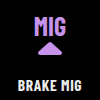 | Ctrl + Shift + 6iRacing › Car Setup › Brakes › Brake Misc. Set (increase) | Raises brake migration: the bias moves rearward during braking, helping corner entry. |
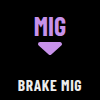 | Ctrl + Shift + 5iRacing › Car Setup › Brakes › Brake Misc. Set (decrease) | Lowers brake migration, making braking more stable. |
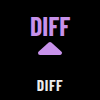 | Not mapped | Raises differential lock: more traction on exit, the car resists turning more. |
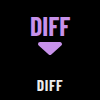 | Not mapped | Lowers differential lock: the car turns more easily, less traction on exit. |
 | Not mapped | Raises engine braking: the car slows more when you lift. |
 | Not mapped | Lowers engine braking: looser rear when you lift, less risk of locking. |
Radio6
| Icon | Shortcut | What it does |
|---|---|---|
 | Ctrl + Shift + NiRacing › Spotter › Spotter Damage Report | Asks the spotter for a damage report: what broke, how much repair time is required or optional and how the car will be afterwards. |
 | Ctrl + Shift + WiRacing › Spotter › Spotter Weather Report | Asks the spotter for a weather report: incoming rain, temperature and track condition. |
 | Ctrl + Shift + 0iRacing › Spotter › Spotter Louder | Turns the spotter volume up. |
 | Ctrl + Shift + 9iRacing › Spotter › Spotter Quieter | Turns the spotter volume down. |
 | Ctrl + Shift + TiRacing › Voice Chat › Push-to-Talk | Talks on the iRacing radio while the key is held. |
 | TiRacing › Text Chat › Text Chat | Opens the iRacing text chat. |
View and session6
| Icon | Shortcut | What it does |
|---|---|---|
 | Z | Looks left while held. Useful without triple screens or VR. |
 | X | Looks right while held. |
 | Alt + MiRacing › Interface › Toggle Virtual Mirror | Turns the virtual mirror at the top of the screen on and off. |
 | Shift + RiRacing › In Car › Enter / Exit / Tow Car | Gets out of the car or calls a tow to the pits. On the D6 it is a long press: hold until iRacing confirms. |
 | Not mapped | Opens the replay to review a moment. |
 | SpaceiRacing › Interface › Cycle UI Visibility Mode | Hides the interface and the black boxes from the screen. Good for screenshots and streaming. |
Driver position9
| Icon | Shortcut | What it does |
|---|---|---|
 | Ctrl + ]iRacing › Cockpit › Increase Driver Height | Raises the driver height (the point of view) in the current car. Adjust until you see the dash and the track as in a real car. |
 | Ctrl + [iRacing › Cockpit › Decrease Driver Height | Lowers the driver height. In formula cars, sitting low gives the right sense of speed but hides part of the track. |
 | Shift + ]iRacing › Cockpit › Shift Horizon Up | Moves the horizon line up on screen to line up with your eye height relative to the monitor. |
 | Shift + [iRacing › Cockpit › Shift Horizon Down | Moves the horizon line down on screen. |
 | [iRacing › Cockpit › Increase Driver Field of View | Widens the field of view (FOV): you see more around you, but the car looks smaller and slower. Ideally, calculate it from the monitor size and distance. |
 | ]iRacing › Cockpit › Decrease Driver Field of View | Narrows the field of view, bringing the image closer to real size. |
 | Ctrl + F12iRacing › Camera & Screen Capture › Open Camera Tool | Opens the camera tool, where the fine adjustment per car lives: move the seat forward, back and sideways (X, Y, Z). Then save it as car.cam. |
 | F9iRacing › Black Box › Mirror Adjustments Black Box | Opens the car mirror adjustment to aim each mirror. |
 | ;iRacing › Cockpit › Recenter VR View | Recenters the view in the VR headset, putting you back in the car seat. |
Practice4
| Icon | Shortcut | What it does |
|---|---|---|
 | Ctrl + Shift + SiRacing › Advanced Analysis › Active Reset › Save Start Point | Active Reset: saves the car position, speed and state at that point on track. Save it right before the corner you want to practice. |
 | Ctrl + Shift + RiRacing › Advanced Analysis › Active Reset › Reset to Start Point | Active Reset: puts the car back at the saved point, just as it was. Hold the key to come back paused and release to drive off. |
 | Ctrl + Shift + KiRacing › Advanced Analysis › Custom Sectors › Mark Start Point | Marks the start of a custom sector to time only the stretch you are practicing. |
 | Ctrl + Shift + LiRacing › Advanced Analysis › Custom Sectors › Mark End Point | Marks the end of the custom sector. With the start, it shows the time of that stretch on every try. |
Telemetry and replay16
| Icon | Shortcut | What it does |
|---|---|---|
 | Alt + LiRacing › Advanced Analysis › Toggle Telemetry Logging | Starts and stops iRacing telemetry recording (.ibt file). Use it to analyze laps and setup in Garage 61, MoTeC or another program. The default shortcut is usually Alt+L. |
 | Ctrl + Num 1iRacing › Replay › Previous Incident | In the replay, jumps to the previous incident. Good for reviewing contact and deciding on a protest. |
 | Ctrl + Num 3iRacing › Replay › Next Incident | In the replay, jumps to the next incident. |
 | Num 5iRacing › Replay › Play / Pause | Plays or pauses the replay. |
 | MiRacing › Advanced Analysis › Mark Event in Telemetry | Marks an event in the telemetry at the current moment, to find the spot later in the analysis. |
 | Num 8iRacing › Replay › Slow Motion | Plays the replay in slow motion to see the detail of a braking point or a contact. |
 | Num 1 (end of recording)iRacing › Replay › End of Recording | Leaves the replay and goes back to live. |
 | Shift + CiRacing › Replay › Previous Camera | Goes back to the previous camera (cockpit, chase, TV). Handy on stream and in the replay. |
 | CiRacing › Replay › Next Camera | Moves to the next camera. |
 | Shift + Num 4iRacing › Replay › Rewind | Rewinds the replay at high speed. |
 | Shift + Num 6iRacing › Replay › Fast Forward | Fast-forwards the replay. |
 | Shift + Num 1iRacing › Replay › Previous Lap | Jumps to the start of the previous lap in the replay. |
 | Shift + Num 3iRacing › Replay › Next Lap | Jumps to the next lap in the replay. |
 | Shift + ViRacing › Replay › Previous Car | Shows the previous car in the replay or broadcast. |
 | ViRacing › Replay › Next Car | Shows the next car in the replay or broadcast. |
 | Ctrl + ViRacing › Replay › Your Car | Brings the camera back to your car. |
Discord12
| Icon | Shortcut | What it does |
|---|---|---|
 | Ctrl + Alt + F1Discord › Toggle Mute | Turns your microphone on and off in Discord. |
 | Ctrl + Alt + F2Discord › Toggle Deafen | Deafens you in Discord: cuts your microphone and everyone else’s audio. Handy to focus on the start. |
 | Ctrl + Alt + F3Discord › Push to Talk | Discord push to talk: you speak while the key is held. |
 | Not mapped | Discord push to mute: you are muted while the key is held. |
 | Not mapped | Share your screen on Discord. Discord does not offer a shortcut for this in every version; check Keybinds. |
 | Not mapped | Turns the camera on and off in the call. Like screen sharing, it depends on Discord offering the shortcut. |
 | Ctrl + Alt + F4Discord › Toggle Overlay | Shows or hides the Discord overlay in the game. |
 | Ctrl + Alt + F5Discord › Toggle Streamer Mode | Turns on Streamer Mode, which hides personal info such as e-mail and invites on screen. |
 | Not mapped | Switches between voice activity and push to talk on Discord. |
 | Not mapped | Answers an incoming Discord call. |
 | Not mapped | Declines an incoming Discord call. |
 | Not mapped | Leaves the voice channel or ends the call. |
OBS14
| Icon | Shortcut | What it does |
|---|---|---|
 | Ctrl + Alt + Shift + F1OBS › Start Streaming | Starts the stream in OBS. |
 | Ctrl + Alt + Shift + F2OBS › Stop Streaming | Ends the stream in OBS. |
 | Ctrl + Alt + Shift + F3OBS › Start and Stop Recording (same key) | Starts or stops recording in OBS. |
 | Ctrl + Alt + Shift + F4OBS › Pause Recording | Pauses and resumes recording without creating another file. |
 | Ctrl + Alt + Shift + F5OBS › Scene 1 › Switch to scene | Switches to scene 1, for example the track in full screen. |
 | Ctrl + Alt + Shift + F6OBS › Scene 2 › Switch to scene | Switches to scene 2, for example track with camera and telemetry. |
 | Ctrl + Alt + Shift + F7OBS › Scene 3 › Switch to scene | Switches to scene 3, for example just the camera to chat. |
 | Ctrl + Alt + Shift + F8OBS › Break scene › Switch to scene | Switches to the break scene (be right back), for pauses between races. |
 | Ctrl + Alt + Shift + F9OBS › Save Replay | Saves the last seconds of the replay buffer. Needs the Replay Buffer turned on in OBS. |
 | Ctrl + Alt + Shift + F10OBS › Microphone › Mute / Unmute | Mutes the microphone on the stream without affecting Discord. |
 | Ctrl + Alt + Shift + F11OBS › Game audio › Mute / Unmute | Mutes the game sound on the stream. |
 | Ctrl + Alt + Shift + F12OBS › Discord audio › Mute / Unmute | Mutes the Discord call audio on the stream, useful for private team talk. |
 | Ctrl + Alt + Shift + HomeOBS › Screenshot Output | Takes a screenshot of the OBS output. |
 | Ctrl + Alt + Shift + EndOBS › Add Chapter Marker | Marks a chapter in the recording so you can find the moment later when editing. Needs a recent OBS version recording to hybrid MP4. |
Basics23
| Icon | Shortcut | What it does |
|---|---|---|
 | Not mapped | Generic up arrow. Use it to navigate menus or for any shortcut that needs a direction. |
 | Not mapped | Generic down arrow. |
 | Not mapped | Generic left arrow. |
 | Not mapped | Generic right arrow. |
 | Not mapped | Goes to the previous D6 page. |
 | Not mapped | Goes to the next D6 page. |
 | Not mapped | Goes back one level on the D6, leaving the current folder. |
 | Folder / Back | Goes back to the D6 Home screen. |
 | Not mapped | Generic folder to group keys on the D6. |
 | Not mapped | Open folder. Use it to show which folder you are in. |
 | Not mapped | Goes up to the parent folder on the D6. |
 | Not mapped | Goes straight to page 1 of the D6. |
 | Not mapped | Goes straight to page 2 of the D6. |
 | Not mapped | Goes straight to page 3 of the D6. |
 | Not mapped | Generic plus, for any setting that raises a value. |
 | Not mapped | Generic minus, for any setting that lowers a value. |
 | Not mapped | Confirm. Works for Enter or to accept something. |
 | Not mapped | Close or cancel. Works for Esc. |
 | Media key | Plays or pauses the computer music (media key). |
 | Media keyWindows › Volume + | Turns the Windows volume up. |
 | Media keyWindows › Volume − | Turns the Windows volume down. |
 | Media keyWindows › Mute | Mutes the Windows sound. |
 | Not mapped | Opens settings. Use it for the sim panel or the D6 itself. |
Screen folders13
| Icon | Shortcut | What it does |
|---|---|---|
 | Folder / Back | Opens the Formula screen. |
 | Folder / Back | Opens the GT screen. |
 | Folder / Back | Opens the Pit stop screen. |
 | Folder / Back | Opens the Adjust and driver screen. |
 | Folder / Back | Opens the Endurance GT screen. |
 | Folder / Back | Folder for an oval screen, if you build one. |
 | Folder / Back | Opens the Rain screen. |
 | Folder / Back | Opens the Driver position screen. |
 | Folder / Back | Opens the Practice screen. |
 | Folder / Back | Opens the Telemetry and replay screen. |
 | Folder / Back | Opens the Replay screen. |
 | Folder / Back | Opens the Discord screen. |
 | Folder / Back | Opens the OBS screen. |
How to set it up
- In iRacing, check Options › Controls for the shortcuts. The controls.cfg on the Downloads page already has the most used ones.
- In your deck software, add a shortcut (Hotkey) action to the key and record the same shortcut as in iRacing.
- Choose a custom image for the key and pick the PNG named after the function. The software resizes it for your deck's screen.
- Have an AmpliGame D6? Import the ready profile and skip steps 2 and 3. If a key does not respond in iRacing, run the deck software as administrator.