Downloads

Ready-made profiles, icons and settings to build your sim racing setup. All free.

PadMap profileUntested

Logitech G29 (PlayStation/PC)

All 16 wheel buttons mapped for iRacing: flash, pit limiter, launch assist, DRS, push to pass, brake bias, TC on the dial, black boxes and radio.

  • PadMap
  • iRacing
  • 16 buttons

Profile in testing

Built without the wheel in hand. Check the buttons before using it.

PadMap profileUntested

Logitech G923 (PlayStation/PC)

All 16 wheel buttons mapped for iRacing: flash, pit limiter, launch assist, DRS, push to pass, brake bias, TC on the dial, black boxes and radio.

  • PadMap
  • iRacing
  • 16 buttons

Profile in testing

Built without the wheel in hand. Check the buttons before using it.

Download: Logitech G923 (PlayStation/PC)See the mappingHow to installiRacing-Logitech-G923-PlayStation.padmap.json · 6 KB
PadMap profileUntested

Logitech G923 (Xbox/PC)

All 14 wheel buttons mapped for iRacing: flash, pit limiter, launch assist, DRS, push to pass, brake bias, TC on the dial, delta and radio.

  • PadMap
  • iRacing
  • 14 buttons

Profile in testing

Built without the wheel in hand. Check the buttons before using it.

Download: Logitech G923 (Xbox/PC)See the mappingHow to installiRacing-Logitech-G923-Xbox.padmap.json · 6 KB
PadMap profileUntested

Logitech G920 (Xbox/PC)

All 9 wheel buttons mapped for iRacing: flash, pit limiter, delta, brake bias, wipers, radio and starter.

  • PadMap
  • iRacing
  • 9 buttons

Profile in testing

Built without the wheel in hand. Check the buttons before using it.

Icon pack

PNG icons

165 icons at 100×100, with and without text, for Stream Deck, AmpliGame D6 or any deck that takes custom images. Black background and one color per function.

  • Any deck
  • 165 icons
  • PNG 100×100
Download: PNG iconsHow to installSee the iconsiRacing_D6_icones.zip · 940 KB
iRacing settings

iRacing shortcuts (controls.cfg)

The keyboard shortcuts used by the PadMap Moza profile and the D6 profile: TC, ABS, brake bias, ERS, DRS, push to pass, spotter, Active Reset, sectors, launch assist and black box switching.

  • iRacing
  • 21 shortcuts

Replaces your current controls. Back up first.

PadMap profile

Moza ES · F1 25

Wheel buttons mapped for F1 25: DRS, overtake, pit limiter, ERS mode, brake bias, MFD, radio and flashback.

  • PadMap
  • F1 25
  • 21 buttons

Needs a few F1 25 key changes (see How to install).

Download: Moza ES · F1 25See the mappingHow to installpadmap-volante-f1-25.padmap.json · 8 KB
PadMap profileUntested

Logitech G29 (PlayStation/PC) · F1 25

The 15 wheel buttons mapped for F1 25: DRS, overtake, pit limiter, ERS on the dial, brake bias on + and −, MFD, radio, flashback and pit stop.

  • PadMap
  • F1 25
  • 15 buttons

Needs a few F1 25 key changes (see How to install).

Profile in testing

Not tested in the game yet. Check the buttons and keys before using it. Send my backup

PadMap profileUntested

Logitech G923 (PlayStation/PC) · F1 25

The 15 wheel buttons mapped for F1 25: DRS, overtake, pit limiter, ERS on the dial, brake bias on + and −, MFD, radio, flashback and pit stop.

  • PadMap
  • F1 25
  • 15 buttons

Needs a few F1 25 key changes (see How to install).

Profile in testing

Not tested in the game yet. Check the buttons and keys before using it. Send my backup

PadMap profileUntested

Logitech G923 (Xbox/PC) · F1 25

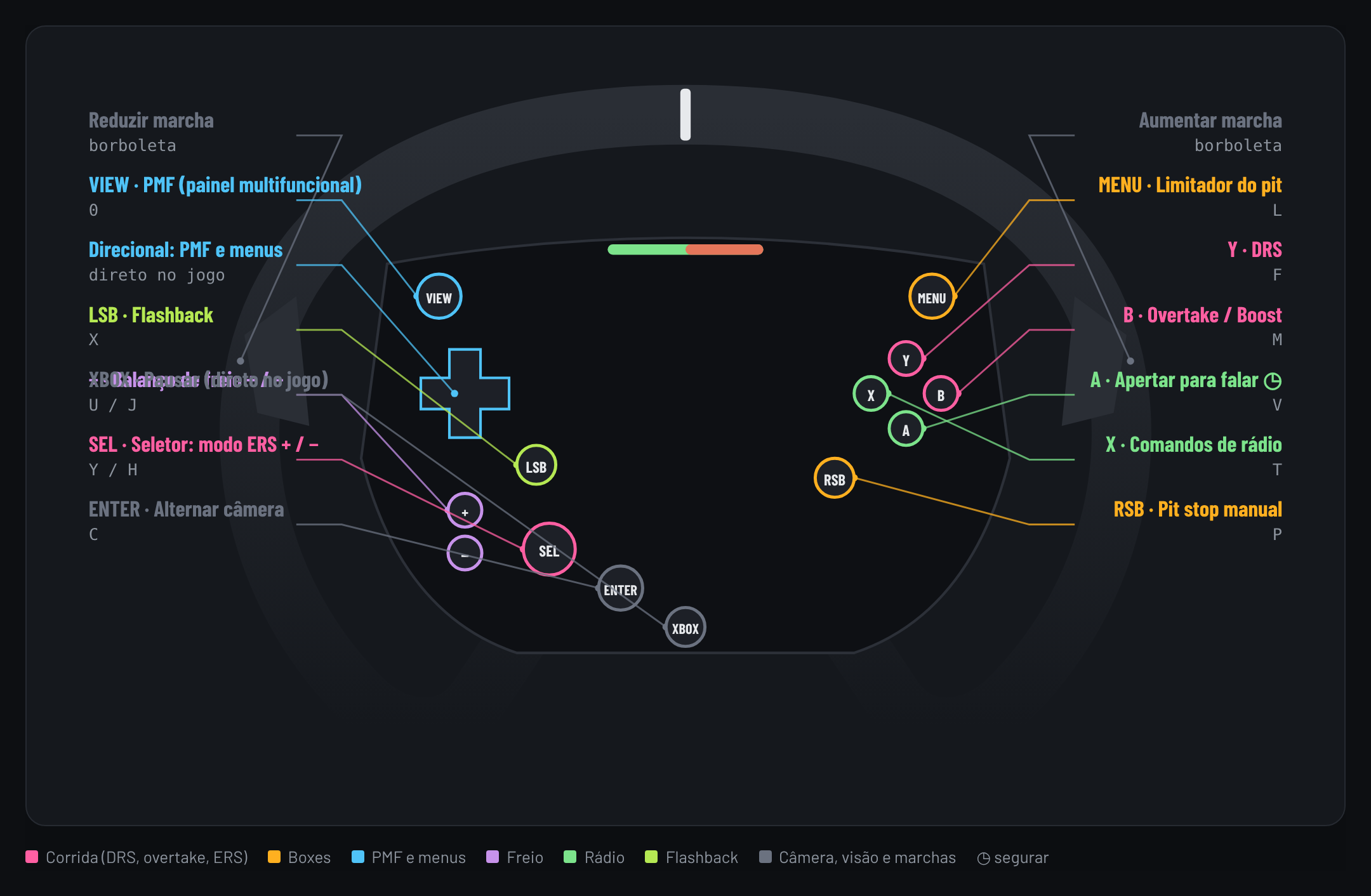
The 13 wheel buttons mapped for F1 25: DRS, overtake, pit limiter, ERS on the dial, brake bias on + and −, MFD, radio, camera, flashback and pit stop.

  • PadMap
  • F1 25
  • 13 buttons

Needs a few F1 25 key changes (see How to install).

Profile in testing

Not tested in the game yet. Check the buttons and keys before using it. Send my backup

Download: Logitech G923 (Xbox/PC) · F1 25See the mappingHow to installpadmap-f1-25-logitech-g923-xbox.padmap.json · 5 KB
PadMap profileUntested

Logitech G920 (Xbox/PC) · F1 25

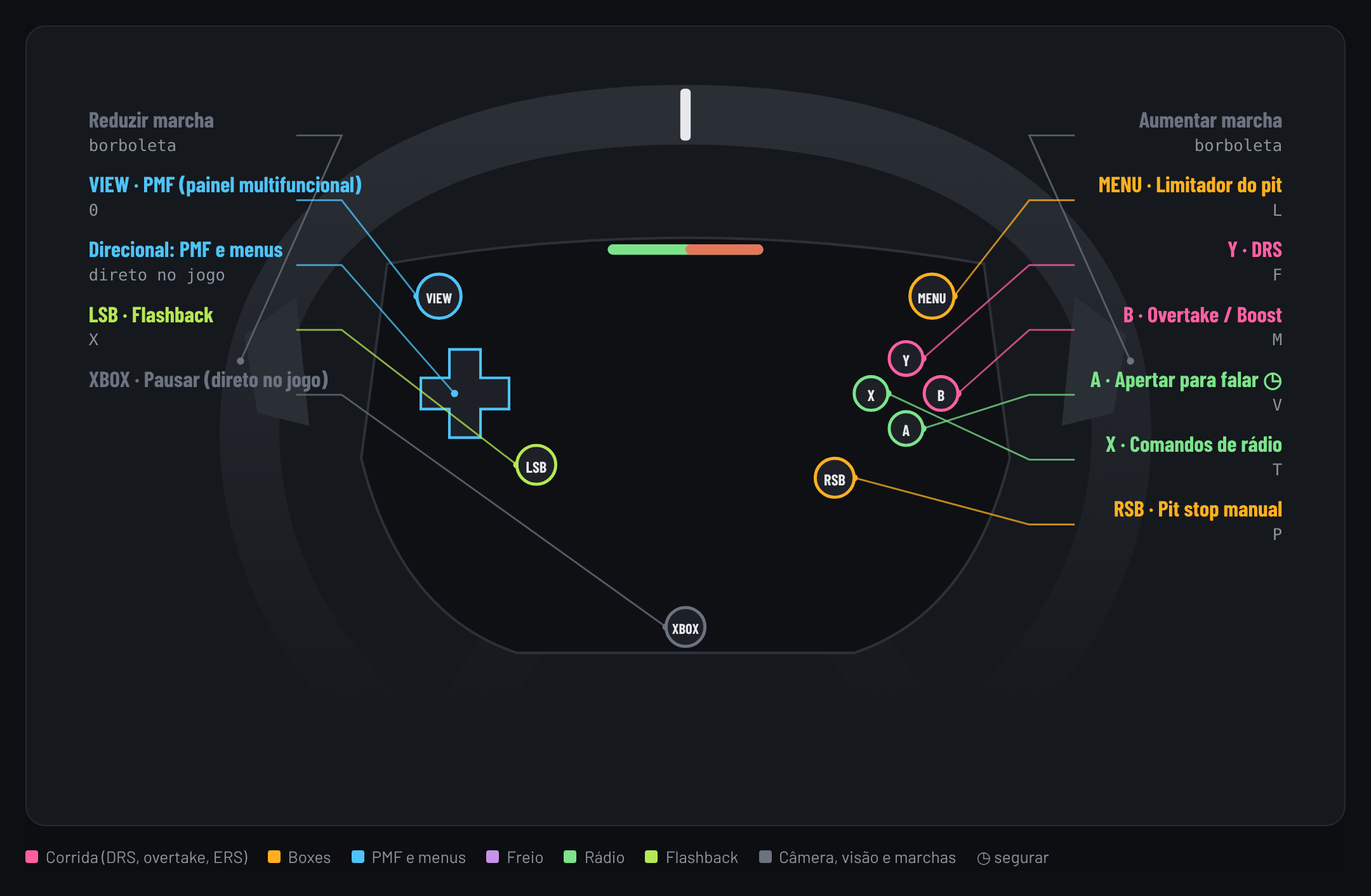
The 8 wheel buttons mapped for F1 25: DRS, overtake, pit limiter, MFD, radio, flashback and pit stop. ERS and brake bias go on the D6 or the MFD.

  • PadMap
  • F1 25
  • 8 buttons

Needs a few F1 25 key changes (see How to install).

Profile in testing

Not tested in the game yet. Check the buttons and keys before using it. Send my backup

D6 profileUntested

F1 25 on the AmpliGame D6

A separate profile from iRacing, with 2 screens: race (ERS, brake bias, diff, fuel mix, DRS, overtake, pit and flashback) and MFD (arrows, car panels, radio and camera).

  • Fifine AmpliGame D6
  • F1 25
  • 2 screens

Profile in testing

Not tested in the game yet. Check the buttons and keys before using it. Send my backup

Icon packUntested

F1 25 icons

The 30 icons from the F1 25 profile (ERS mode, overtake, fuel mix, MFD, pit plan and more), PNG 100×100, same style as the rest.

  • Any deck
  • 30 icons
  • PNG 100×100

Profile in testing

Not tested in the game yet. Check the buttons and keys before using it. Send my backup

Download: F1 25 iconsHow to installF1_25_D6_icones.zip · 59 KB

How to install · Moza ES Steering Wheel

In PadMap, open Settings › Import…, pick the file and choose "Merge with current". Use it together with the iRacing key bindings (controls.cfg) below.

How to install · Logitech G29 (PlayStation/PC)

In PadMap, open Settings › Import…, pick the file and choose "Merge with current". Use it together with the iRacing key bindings (controls.cfg) below.

How to install · Logitech G923 (PlayStation/PC)

In PadMap, open Settings › Import…, pick the file and choose "Merge with current". Use it together with the iRacing key bindings (controls.cfg) below.

How to install · Logitech G923 (Xbox/PC)

In PadMap, open Settings › Import…, pick the file and choose "Merge with current". Use it together with the iRacing key bindings (controls.cfg) below.

How to install · Logitech G920 (Xbox/PC)

In PadMap, open Settings › Import…, pick the file and choose "Merge with current". Use it together with the iRacing key bindings (controls.cfg) below.

How to install · iRacing on the AmpliGame D6

Extract the .SDProfile from the zip and import it in Fifine Control Deck. Keep the software open while racing.

How to install · PNG icons

In your deck software, click the key, choose custom image and pick the PNG.

How to install · iRacing shortcuts (controls.cfg)

Close iRacing, keep a copy of your controls.cfg and put the one from the zip in Documents\iRacing\profiles\controls\Baseline (or the folder of the controls profile you use), replacing the file. The first time, iRacing may ask you to recalibrate your wheel and pedals: just follow the calibration wizard.

How to install · Moza ES · F1 25

In PadMap, open Settings › Import…, pick the file and choose "Merge with current". Then set the F1 25 keys listed below and, on the game's wheel preset, clear the race actions from the buttons PadMap uses. Steering, pedals, paddles, d-pad and menu controls stay as they are. On the game's ES Steering Wheel preset, keep Pause on HOME and Clutch on the right paddle (the game requires both).

Step by step in F1 25:

  1. In F1 25, open Settings › Controls, vibration and force feedback.
  2. Open Keyboard preset 1, set the keys listed below and save it as a new preset named "PadMap".
  3. Open your wheel preset (on the Moza ES, "ES Steering Wheel"). In Control scheme, Menu controls (Navigate and Menu) and MFD shortcuts, set everything PadMap handles to "Unassigned". Keep steering, pedals, paddles, Accept/Back and the menu-only buttons.
  4. The game requires Pause and Clutch on the wheel: on the Moza ES, Pause on HOME and Clutch on the right paddle (the ⚠ warning is normal). On Logitech wheels, keep both on the game's default buttons.
  5. Save the wheel preset as "<your wheel> + PadMap" (e.g. "Moza R5 + PadMap") and check that both new presets are ticked ✓.
  6. Open PadMap with the "F1 25" profile active and test it in Time Trial.

Keys to set in F1 25:

  • Pit speed limiterL
  • Manual pit stopP
  • MFD (the top-row 0, for keyboards without a numpad)0
  • Shift up (the paddles shift directly)E
  • Clutch stays on SPACE, DRS stays on F
  • Brake bias + / −U / J
  • ERS mode + / −Y / H
  • Differential + / −I / K
  • Fuel mix + / −N / B

How to install · Logitech G29 (PlayStation/PC) · F1 25

In PadMap, open Settings › Import…, pick the file and choose "Merge with current". Then set the F1 25 keys listed below and, on the game's wheel preset, clear the race actions from the buttons PadMap uses. Steering, pedals, paddles, d-pad and menu controls stay as they are.

Step by step in F1 25:

  1. In F1 25, open Settings › Controls, vibration and force feedback.
  2. Open Keyboard preset 1, set the keys listed below and save it as a new preset named "PadMap".
  3. Open your wheel preset (on the Moza ES, "ES Steering Wheel"). In Control scheme, Menu controls (Navigate and Menu) and MFD shortcuts, set everything PadMap handles to "Unassigned". Keep steering, pedals, paddles, Accept/Back and the menu-only buttons.
  4. The game requires Pause and Clutch on the wheel: on the Moza ES, Pause on HOME and Clutch on the right paddle (the ⚠ warning is normal). On Logitech wheels, keep both on the game's default buttons.
  5. Save the wheel preset as "<your wheel> + PadMap" (e.g. "Moza R5 + PadMap") and check that both new presets are ticked ✓.
  6. Open PadMap with the "F1 25" profile active and test it in Time Trial.

Keys to set in F1 25:

  • Pit speed limiterL
  • Manual pit stopP
  • MFD (the top-row 0, for keyboards without a numpad)0
  • Shift up (the paddles shift directly)E
  • Clutch stays on SPACE, DRS stays on F
  • Brake bias + / −U / J
  • ERS mode + / −Y / H
  • Differential + / −I / K
  • Fuel mix + / −N / B

How to install · Logitech G923 (PlayStation/PC) · F1 25

In PadMap, open Settings › Import…, pick the file and choose "Merge with current". Then set the F1 25 keys listed below and, on the game's wheel preset, clear the race actions from the buttons PadMap uses. Steering, pedals, paddles, d-pad and menu controls stay as they are.

Step by step in F1 25:

  1. In F1 25, open Settings › Controls, vibration and force feedback.
  2. Open Keyboard preset 1, set the keys listed below and save it as a new preset named "PadMap".
  3. Open your wheel preset (on the Moza ES, "ES Steering Wheel"). In Control scheme, Menu controls (Navigate and Menu) and MFD shortcuts, set everything PadMap handles to "Unassigned". Keep steering, pedals, paddles, Accept/Back and the menu-only buttons.
  4. The game requires Pause and Clutch on the wheel: on the Moza ES, Pause on HOME and Clutch on the right paddle (the ⚠ warning is normal). On Logitech wheels, keep both on the game's default buttons.
  5. Save the wheel preset as "<your wheel> + PadMap" (e.g. "Moza R5 + PadMap") and check that both new presets are ticked ✓.
  6. Open PadMap with the "F1 25" profile active and test it in Time Trial.

Keys to set in F1 25:

  • Pit speed limiterL
  • Manual pit stopP
  • MFD (the top-row 0, for keyboards without a numpad)0
  • Shift up (the paddles shift directly)E
  • Clutch stays on SPACE, DRS stays on F
  • Brake bias + / −U / J
  • ERS mode + / −Y / H
  • Differential + / −I / K
  • Fuel mix + / −N / B

How to install · Logitech G923 (Xbox/PC) · F1 25

In PadMap, open Settings › Import…, pick the file and choose "Merge with current". Then set the F1 25 keys listed below and, on the game's wheel preset, clear the race actions from the buttons PadMap uses. Steering, pedals, paddles, d-pad and menu controls stay as they are.

Step by step in F1 25:

  1. In F1 25, open Settings › Controls, vibration and force feedback.
  2. Open Keyboard preset 1, set the keys listed below and save it as a new preset named "PadMap".
  3. Open your wheel preset (on the Moza ES, "ES Steering Wheel"). In Control scheme, Menu controls (Navigate and Menu) and MFD shortcuts, set everything PadMap handles to "Unassigned". Keep steering, pedals, paddles, Accept/Back and the menu-only buttons.
  4. The game requires Pause and Clutch on the wheel: on the Moza ES, Pause on HOME and Clutch on the right paddle (the ⚠ warning is normal). On Logitech wheels, keep both on the game's default buttons.
  5. Save the wheel preset as "<your wheel> + PadMap" (e.g. "Moza R5 + PadMap") and check that both new presets are ticked ✓.
  6. Open PadMap with the "F1 25" profile active and test it in Time Trial.

Keys to set in F1 25:

  • Pit speed limiterL
  • Manual pit stopP
  • MFD (the top-row 0, for keyboards without a numpad)0
  • Shift up (the paddles shift directly)E
  • Clutch stays on SPACE, DRS stays on F
  • Brake bias + / −U / J
  • ERS mode + / −Y / H
  • Differential + / −I / K
  • Fuel mix + / −N / B

How to install · Logitech G920 (Xbox/PC) · F1 25

In PadMap, open Settings › Import…, pick the file and choose "Merge with current". Then set the F1 25 keys listed below and, on the game's wheel preset, clear the race actions from the buttons PadMap uses. Steering, pedals, paddles, d-pad and menu controls stay as they are.

Step by step in F1 25:

  1. In F1 25, open Settings › Controls, vibration and force feedback.
  2. Open Keyboard preset 1, set the keys listed below and save it as a new preset named "PadMap".
  3. Open your wheel preset (on the Moza ES, "ES Steering Wheel"). In Control scheme, Menu controls (Navigate and Menu) and MFD shortcuts, set everything PadMap handles to "Unassigned". Keep steering, pedals, paddles, Accept/Back and the menu-only buttons.
  4. The game requires Pause and Clutch on the wheel: on the Moza ES, Pause on HOME and Clutch on the right paddle (the ⚠ warning is normal). On Logitech wheels, keep both on the game's default buttons.
  5. Save the wheel preset as "<your wheel> + PadMap" (e.g. "Moza R5 + PadMap") and check that both new presets are ticked ✓.
  6. Open PadMap with the "F1 25" profile active and test it in Time Trial.

Keys to set in F1 25:

  • Pit speed limiterL
  • Manual pit stopP
  • MFD (the top-row 0, for keyboards without a numpad)0
  • Shift up (the paddles shift directly)E
  • Clutch stays on SPACE, DRS stays on F
  • Brake bias + / −U / J
  • ERS mode + / −Y / H
  • Differential + / −I / K
  • Fuel mix + / −N / B

How to install · F1 25 on the AmpliGame D6

In Fifine Control Deck, import F1_25_D6.SDProfile. It is added as a new profile without touching the others. It uses the same keys as the Moza ES · F1 25 profile.

Keys to set in F1 25:

  • Pit speed limiterL
  • Manual pit stopP
  • MFD (the top-row 0, for keyboards without a numpad)0
  • Shift up (the paddles shift directly)E
  • Clutch stays on SPACE, DRS stays on F
  • Brake bias + / −U / J
  • ERS mode + / −Y / H
  • Differential + / −I / K
  • Fuel mix + / −N / B

How to install · F1 25 icons

In your deck software, click the key, choose custom image and pick the PNG.

Keys to set in F1 25:

  • Pit speed limiterL
  • Manual pit stopP
  • MFD (the top-row 0, for keyboards without a numpad)0
  • Shift up (the paddles shift directly)E
  • Clutch stays on SPACE, DRS stays on F
  • Brake bias + / −U / J
  • ERS mode + / −Y / H
  • Differential + / −I / K
  • Fuel mix + / −N / B

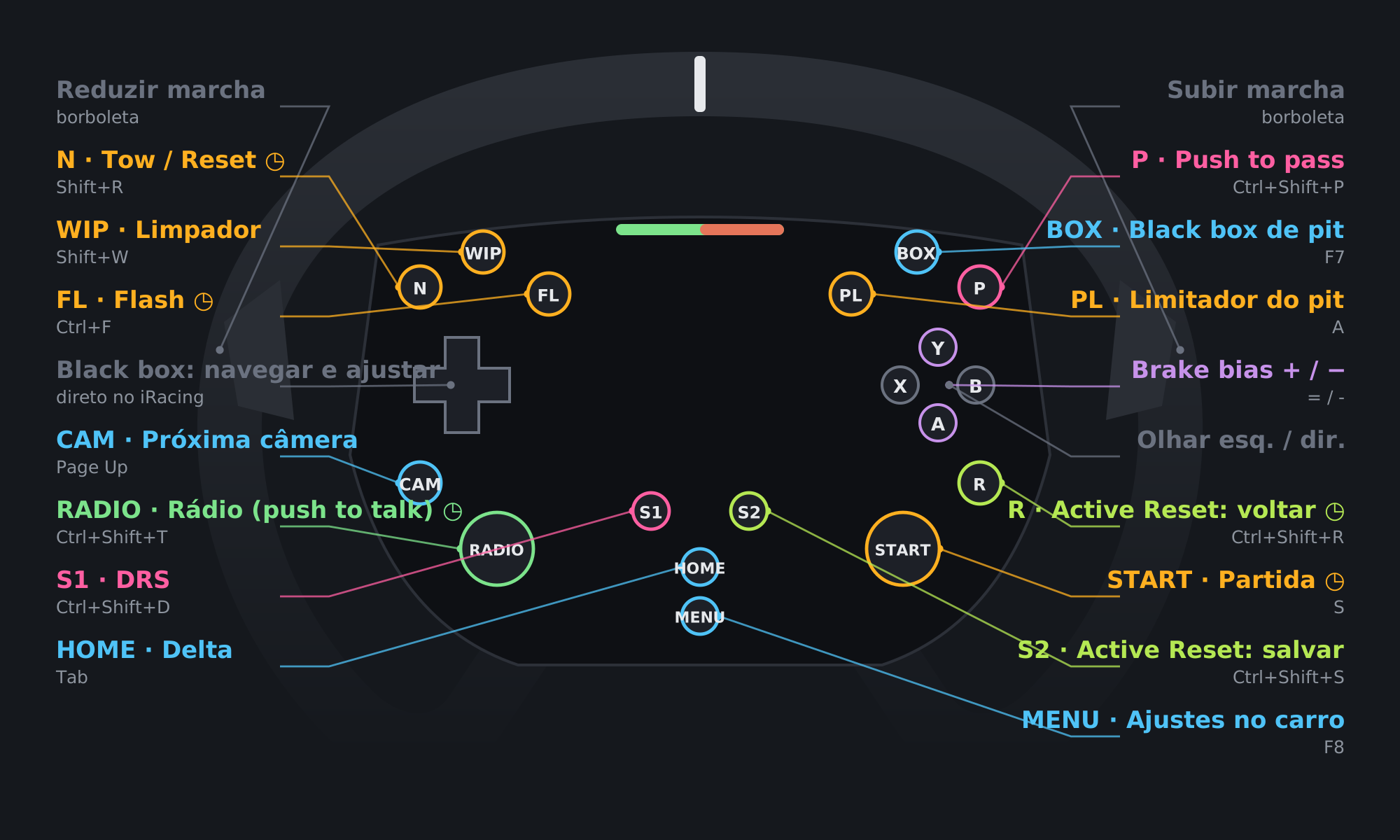
Moza ES mapping for iRacing

Each wheel button, its iRacing function and keyboard shortcut. ◷ = hold.

Moza ES mapping for iRacing
ButtonFunctionShortcut
NTow / Reset (hold)Shift+R
WIPWipersShift+W
FLFlash (hold)Ctrl+F
CAMNext cameraPageUp
RADIORadio (push to talk) (hold)Ctrl+Shift+T
S1DRSCtrl+Shift+D
HOMEDeltaTab
PPush to passCtrl+Shift+P
BOXPit black boxF7
PLPit limiterA
YBrake bias +=
ABrake bias −-
RActive Reset: go back (hold)Ctrl+Shift+R
STARTStarter (hold)S
S2Active Reset: saveCtrl+Shift+S
MENUIn-car adjustmentsF8

Straight to iRacing: paddles (shift gears) and D-pad (browse and adjust the black box). They don't go through PadMap.

X and B (look left and right) also go straight to iRacing.

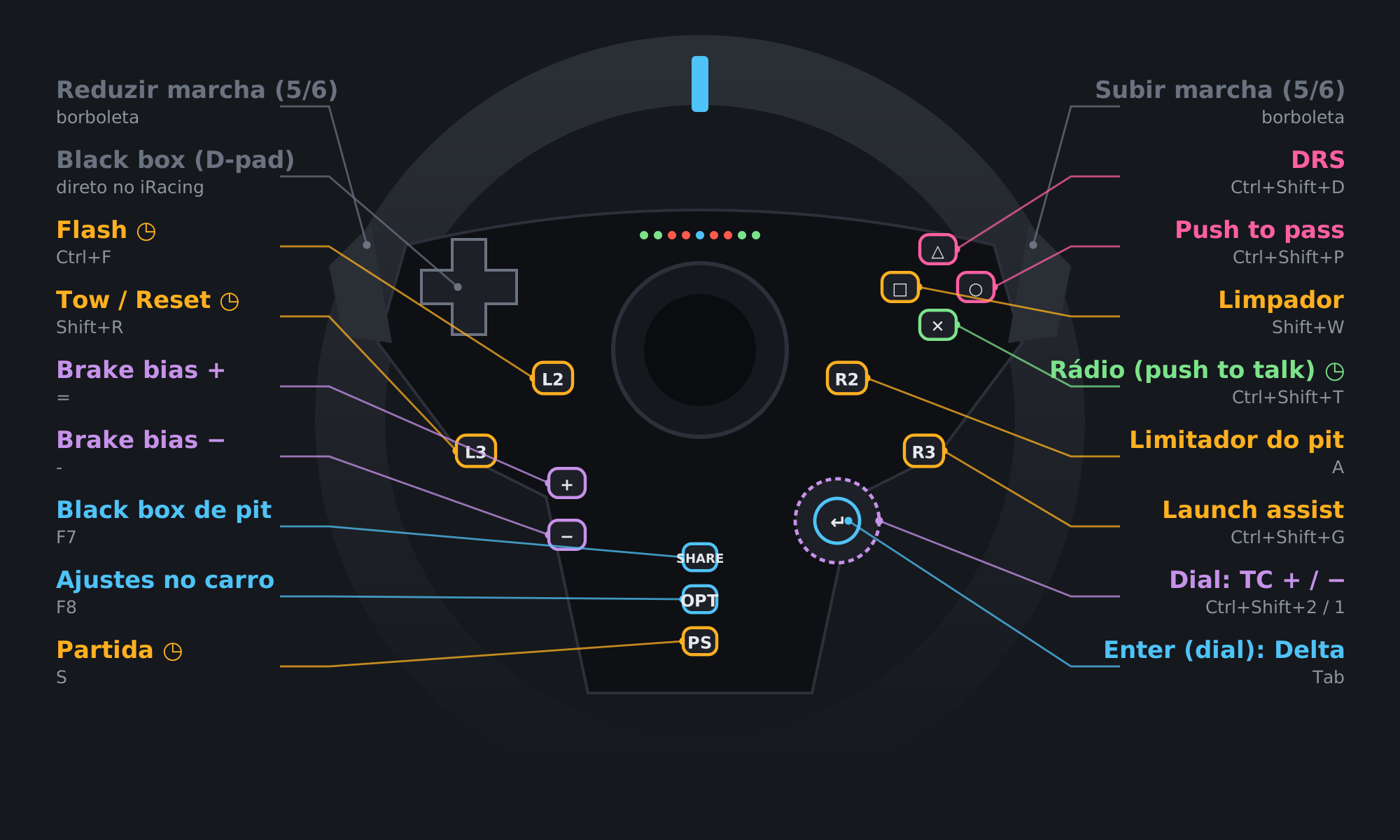
Logitech G29 (PlayStation/PC) mapping for iRacing

Each wheel button, its iRacing function and keyboard shortcut. ◷ = hold.

Profile in testing

Built without the wheel in hand, from the button numbering of Logitech wheels (G29 and G920). It may need adjustments on your wheel.

Before using it:

  1. Open joy.cpl (Set up USB game controllers › Properties) and press each button to see which number lights up.
  2. Check especially the +, − buttons, the dial (turn it both ways) and its enter. Their numbers are the least reliable.
  3. If PadMap doesn't recognize the wheel, change the product code to the one the app shows (this profile uses C24F).
  4. Found a difference? Adjust it in PadMap and send us your backup so we can fix the profile. Send my backup
Logitech G29 (PlayStation/PC) mapping for iRacing
ButtonFunctionShortcut
L2Flash (hold)Ctrl+F
R2Pit limiterA
L3Tow / Reset (hold)Shift+R
R3Launch assistCtrl+Shift+G
TriangleDRSCtrl+Shift+D
CirclePush to passCtrl+Shift+P
SquareWipersShift+W
CrossRadio (push to talk) (hold)Ctrl+Shift+T
+Brake bias +=
−Brake bias −-
Dial ↻TC +Ctrl+Shift+2
Dial ↺TC −Ctrl+Shift+1
Dial enterDeltaTab
SharePit black boxF7
OptionsIn-car adjustmentsF8
PSStarter (hold)S

Straight to iRacing: paddles (shift gears) and D-pad (browse and adjust the black box). They don't go through PadMap.

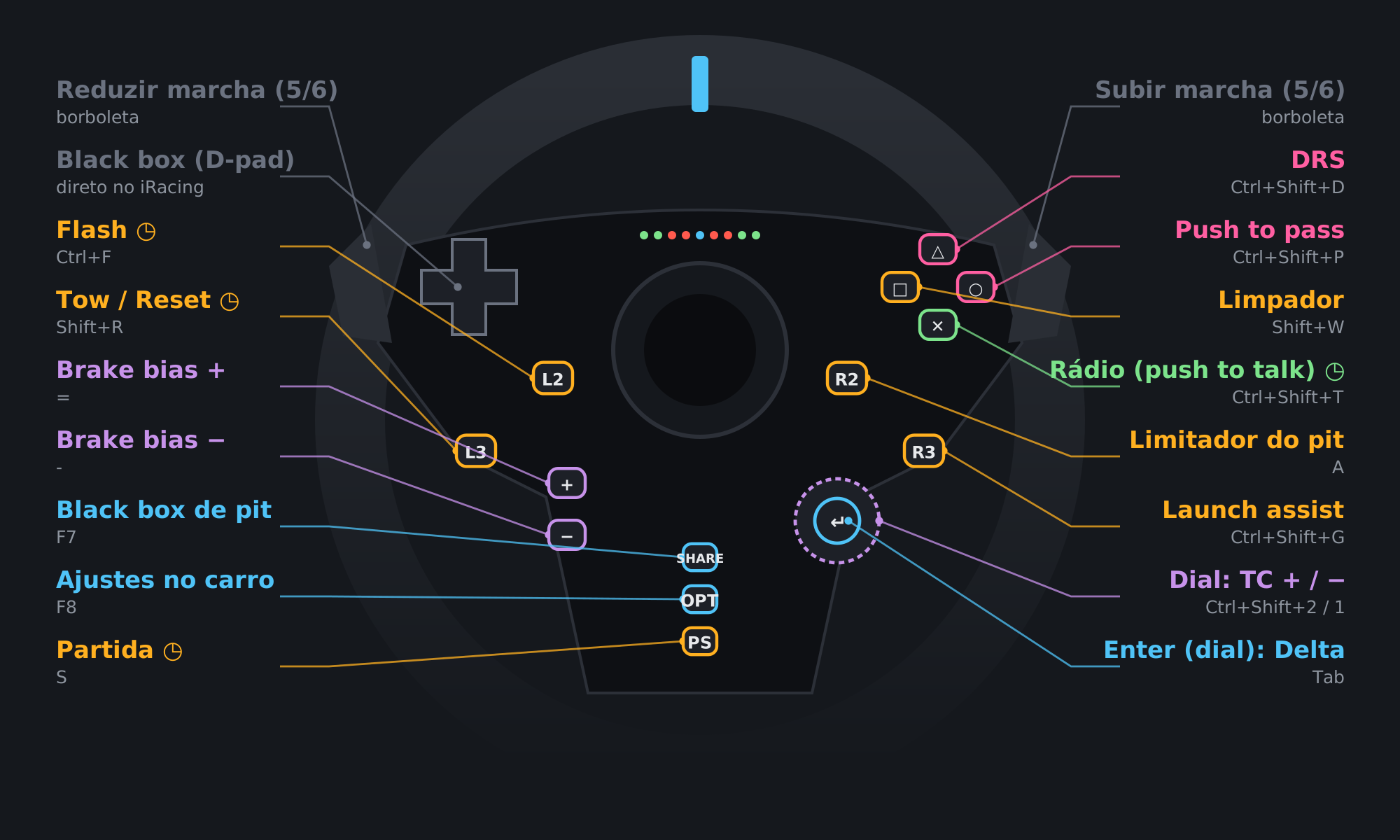
Logitech G923 (PlayStation/PC) mapping for iRacing

Each wheel button, its iRacing function and keyboard shortcut. ◷ = hold.

Profile in testing

Built without the wheel in hand, from the button numbering of Logitech wheels (G29 and G920). It may need adjustments on your wheel.

Before using it:

  1. Open joy.cpl (Set up USB game controllers › Properties) and press each button to see which number lights up.
  2. Check especially the +, − buttons, the dial (turn it both ways) and its enter. Their numbers are the least reliable.
  3. If PadMap doesn't recognize the wheel, change the product code to the one the app shows (this profile uses C266).
  4. Found a difference? Adjust it in PadMap and send us your backup so we can fix the profile. Send my backup
Logitech G923 (PlayStation/PC) mapping for iRacing
ButtonFunctionShortcut
L2Flash (hold)Ctrl+F
R2Pit limiterA
L3Tow / Reset (hold)Shift+R
R3Launch assistCtrl+Shift+G
TriangleDRSCtrl+Shift+D
CirclePush to passCtrl+Shift+P
SquareWipersShift+W
CrossRadio (push to talk) (hold)Ctrl+Shift+T
+Brake bias +=
−Brake bias −-
Dial ↻TC +Ctrl+Shift+2
Dial ↺TC −Ctrl+Shift+1
Dial enterDeltaTab
SharePit black boxF7
OptionsIn-car adjustmentsF8
PSStarter (hold)S

Straight to iRacing: paddles (shift gears) and D-pad (browse and adjust the black box). They don't go through PadMap.

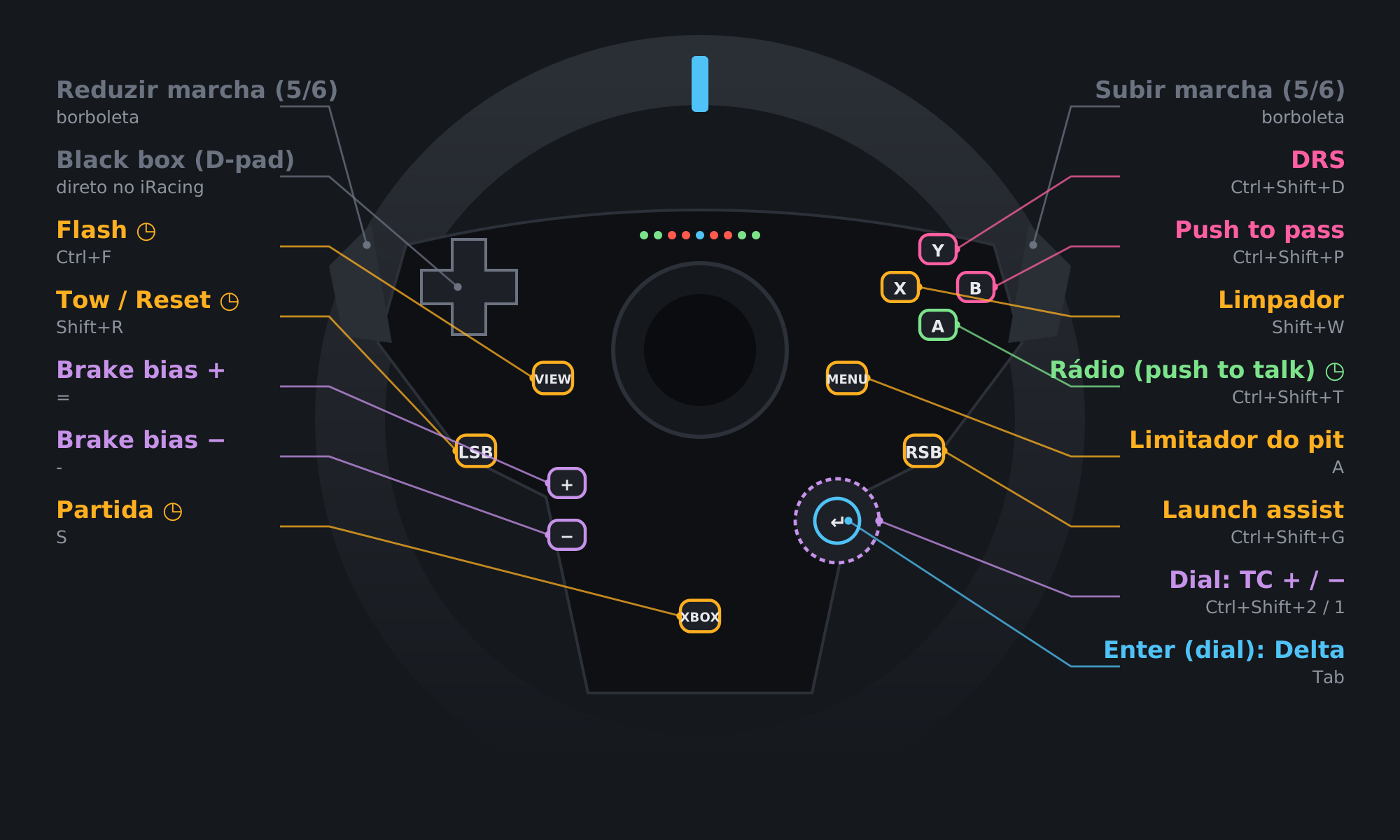
Logitech G923 (Xbox/PC) mapping for iRacing

Each wheel button, its iRacing function and keyboard shortcut. ◷ = hold.

Profile in testing

Built without the wheel in hand, from the button numbering of Logitech wheels (G29 and G920). It may need adjustments on your wheel.

Before using it:

  1. Open joy.cpl (Set up USB game controllers › Properties) and press each button to see which number lights up.
  2. Check especially the +, − buttons, the dial (turn it both ways) and its enter. Their numbers are the least reliable.
  3. If PadMap doesn't recognize the wheel, change the product code to the one the app shows (this profile uses C26E).
  4. Found a difference? Adjust it in PadMap and send us your backup so we can fix the profile. Send my backup
Logitech G923 (Xbox/PC) mapping for iRacing
ButtonFunctionShortcut
ViewFlash (hold)Ctrl+F
MenuPit limiterA
LSBTow / Reset (hold)Shift+R
RSBLaunch assistCtrl+Shift+G
YDRSCtrl+Shift+D
BPush to passCtrl+Shift+P
XWipersShift+W
ARadio (push to talk) (hold)Ctrl+Shift+T
+Brake bias +=
−Brake bias −-
Dial ↻TC +Ctrl+Shift+2
Dial ↺TC −Ctrl+Shift+1
Dial enterDeltaTab
XboxStarter (hold)S

Straight to iRacing: paddles (shift gears) and D-pad (browse and adjust the black box). They don't go through PadMap.

This wheel has no buttons like Share and Options, so the pit black box (F7) and in-car adjustments (F8) are left out.

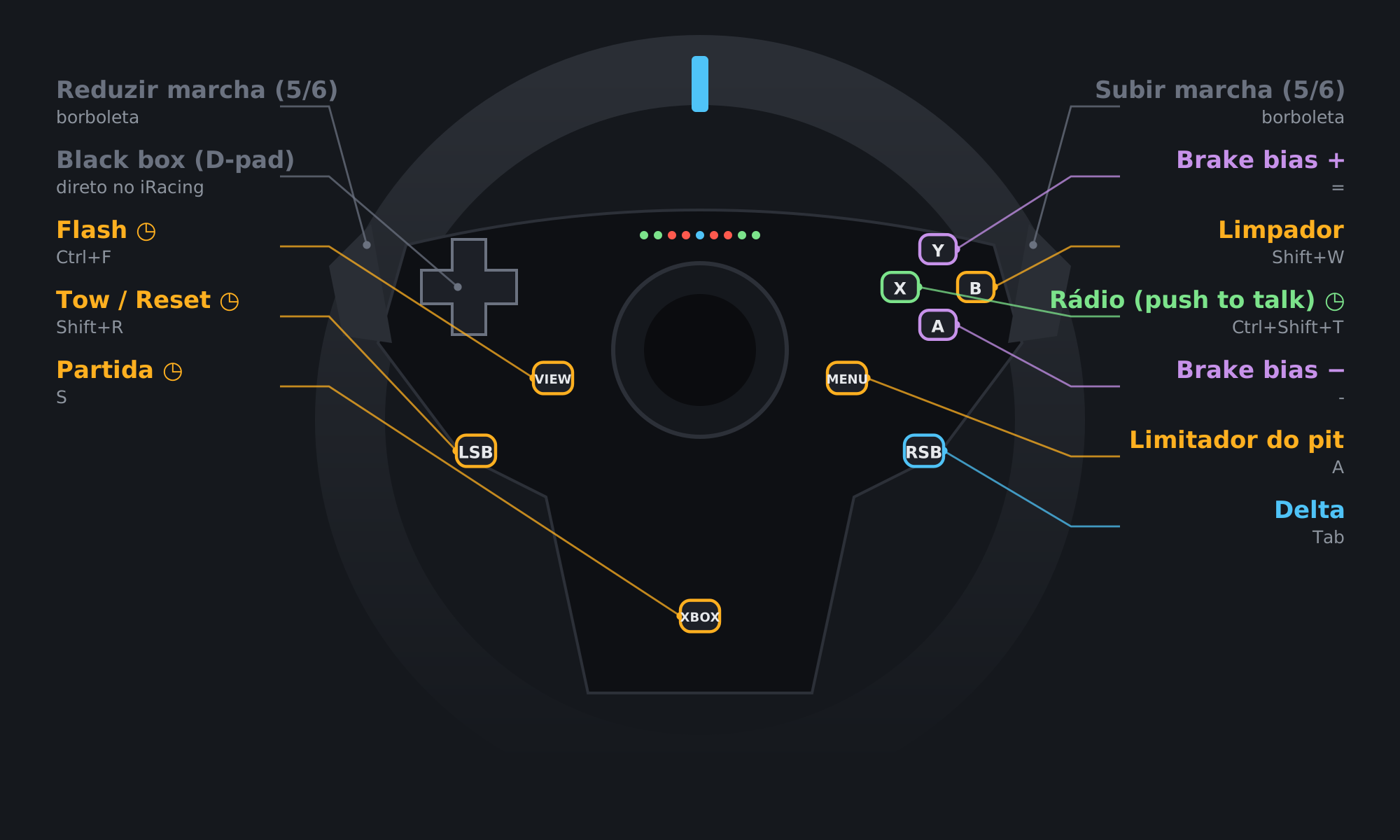
Logitech G920 (Xbox/PC) mapping for iRacing

Each wheel button, its iRacing function and keyboard shortcut. ◷ = hold.

Profile in testing

Built without the wheel in hand, from the button numbering of Logitech wheels (G29 and G920). It may need adjustments on your wheel.

Before using it:

  1. Open joy.cpl (Set up USB game controllers › Properties) and press each button to see which number lights up.
  2. If PadMap doesn't recognize the wheel, change the product code to the one the app shows (this profile uses C262).
  3. Found a difference? Adjust it in PadMap and send us your backup so we can fix the profile. Send my backup
Logitech G920 (Xbox/PC) mapping for iRacing
ButtonFunctionShortcut
ViewFlash (hold)Ctrl+F
MenuPit limiterA
LSBTow / Reset (hold)Shift+R
RSBDeltaTab
YBrake bias +=
ABrake bias −-
XRadio (push to talk) (hold)Ctrl+Shift+T
BWipersShift+W
XboxStarter (hold)S

Straight to iRacing: paddles (shift gears) and D-pad (browse and adjust the black box). They don't go through PadMap.

The G920 has no +, − or dial: TC, ABS, DRS, push to pass and launch assist stay on the D6 or the keyboard.

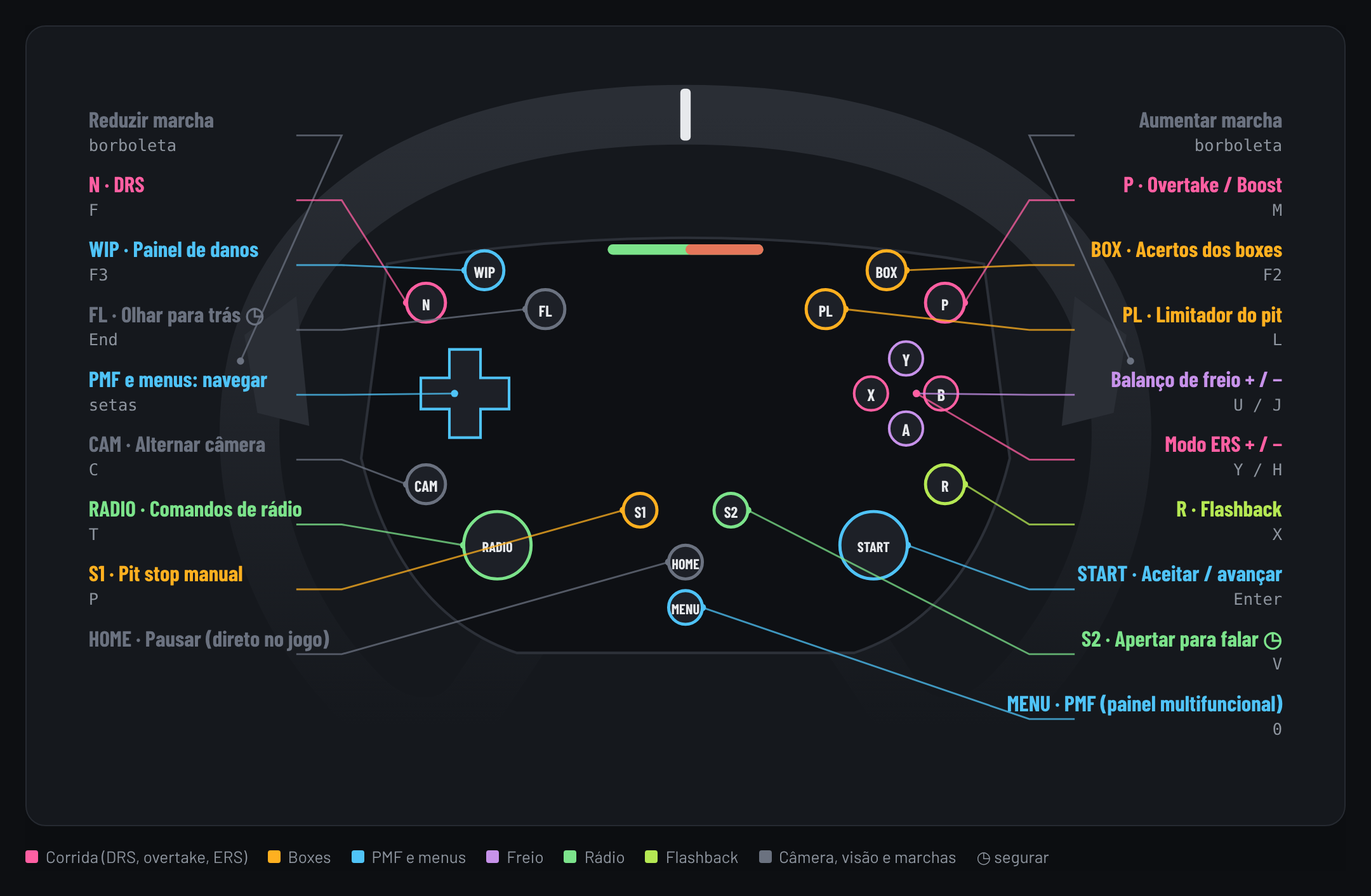
Moza ES mapping for F1 25

Each wheel button, its F1 25 function and keyboard shortcut. ◷ = hold.

Moza ES mapping for F1 25
ButtonFunctionShortcut
NDRSF
WIPDamage panelF3
FLLook back (hold)End
D-pad upMFD and menus: upUp
D-pad downMFD and menus: downDown
D-pad leftMFD and menus: leftLeft
D-pad rightMFD and menus: rightRight
CAMChange cameraC
RADIORadio commandsT
S1Manual pit stopP
POvertake / BoostM
BOXPit settingsF2
PLPit limiterL
YBrake bias +U
ABrake bias −J
BERS mode +Y
XERS mode −H
RFlashbackX
STARTAccept / continueEnter
S2Push to talk (hold)V
MENUMFD (multi-function display)0

Straight to F1 25: paddles (shift gears; clutch on the right) and HOME (pause). They don't go through PadMap.

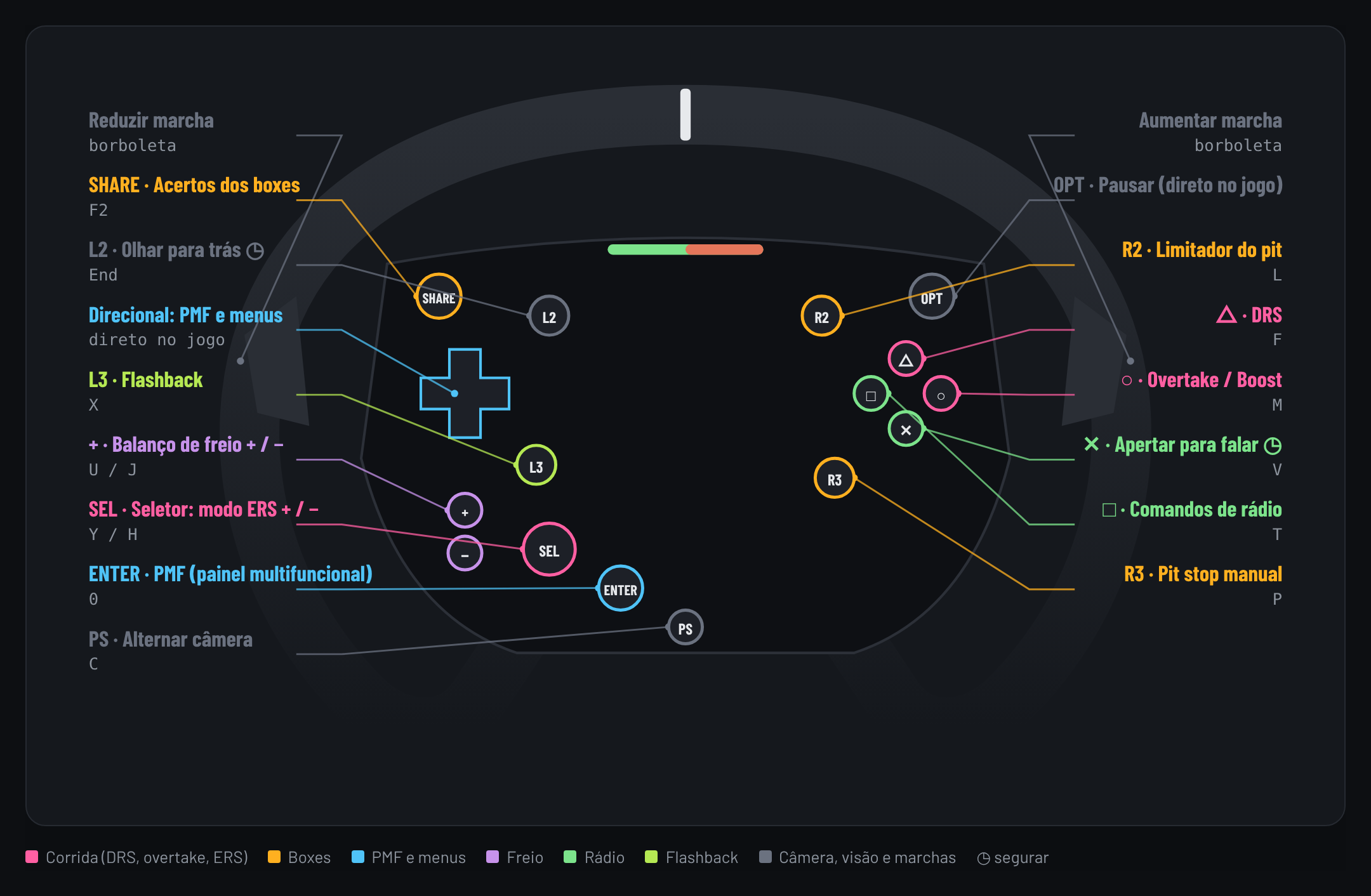
Logitech G29 (PlayStation/PC) mapping for F1 25

Each wheel button, its F1 25 function and keyboard shortcut. ◷ = hold.

Profile in testing

Not tested in the game yet. Check the buttons and keys before using it. Send my backup

Logitech G29 (PlayStation/PC) mapping for F1 25
ButtonFunctionShortcut
L2Look back (hold)End
R2Pit limiterL
L3FlashbackX
R3Manual pit stopP
TriangleDRSF
CircleOvertake / BoostM
SquareRadio commandsT
CrossPush to talk (hold)V
+Brake bias +U
−Brake bias −J
Dial ↻ERS mode +Y
Dial ↺ERS mode −H
Dial enterMFD (multi-function display)0
SharePit settingsF2
PSChange cameraC

Straight to F1 25: paddles (shift gears), D-pad (browse menus) and Options (pause). They don't go through PadMap.

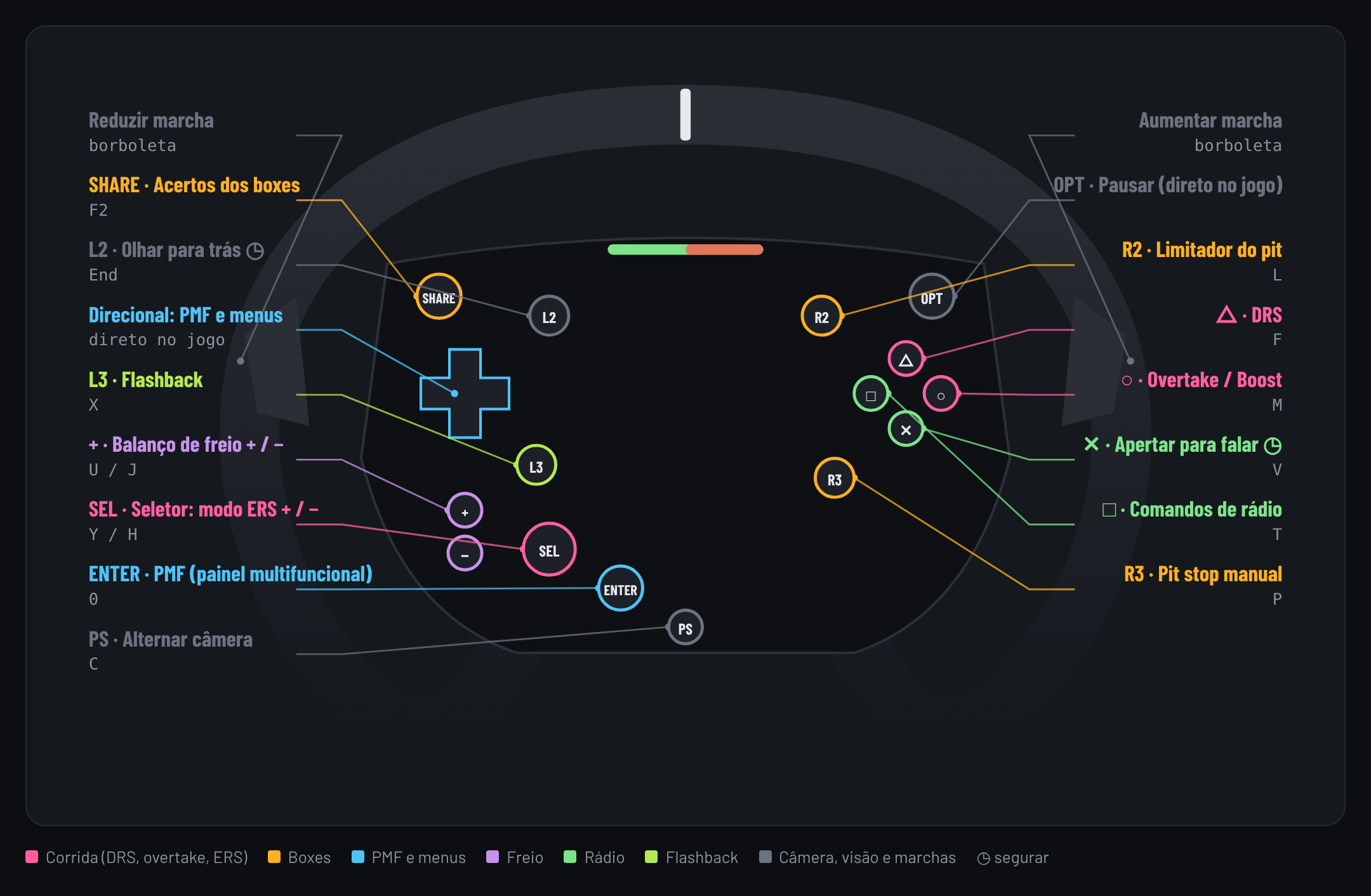
Logitech G923 (PlayStation/PC) mapping for F1 25

Each wheel button, its F1 25 function and keyboard shortcut. ◷ = hold.

Profile in testing

Not tested in the game yet. Check the buttons and keys before using it. Send my backup

Logitech G923 (PlayStation/PC) mapping for F1 25
ButtonFunctionShortcut
L2Look back (hold)End
R2Pit limiterL
L3FlashbackX
R3Manual pit stopP
TriangleDRSF
CircleOvertake / BoostM
SquareRadio commandsT
CrossPush to talk (hold)V
+Brake bias +U
−Brake bias −J
Dial ↻ERS mode +Y
Dial ↺ERS mode −H
Dial enterMFD (multi-function display)0
SharePit settingsF2
PSChange cameraC

Straight to F1 25: paddles (shift gears), D-pad (browse menus) and Options (pause). They don't go through PadMap.

Logitech G923 (Xbox/PC) mapping for F1 25

Each wheel button, its F1 25 function and keyboard shortcut. ◷ = hold.

Profile in testing

Not tested in the game yet. Check the buttons and keys before using it. Send my backup

Logitech G923 (Xbox/PC) mapping for F1 25
ButtonFunctionShortcut
ViewMFD (multi-function display)0
MenuPit limiterL
LSBFlashbackX
RSBManual pit stopP
YDRSF
BOvertake / BoostM
XRadio commandsT
APush to talk (hold)V
+Brake bias +U
−Brake bias −J
Dial ↻ERS mode +Y
Dial ↺ERS mode −H
Dial enterChange cameraC

Straight to F1 25: paddles (shift gears), D-pad (browse menus) and the Xbox button (pause). They don't go through PadMap.

Logitech G920 (Xbox/PC) mapping for F1 25

Each wheel button, its F1 25 function and keyboard shortcut. ◷ = hold.

Profile in testing

Not tested in the game yet. Check the buttons and keys before using it. Send my backup

Logitech G920 (Xbox/PC) mapping for F1 25
ButtonFunctionShortcut
ViewMFD (multi-function display)0
MenuPit limiterL
LSBFlashbackX
RSBManual pit stopP
YDRSF
APush to talk (hold)V
XRadio commandsT
BOvertake / BoostM

Straight to F1 25: paddles (shift gears), D-pad (browse menus) and the Xbox button (pause). They don't go through PadMap.

The G920 has no +, − or dial: ERS and brake bias stay on the D6 or the MFD.